Lab Streaming Layer (LSL) for Synchronizing Multiple Data Streams
Dr. Roshini Randeniya and Lucas Kleine
Updated on
May 17, 2024
Lab Streaming Layer (LSL) for Synchronizing Multiple Data Streams
Dr. Roshini Randeniya and Lucas Kleine
Updated on
May 17, 2024
Lab Streaming Layer (LSL) for Synchronizing Multiple Data Streams
Dr. Roshini Randeniya and Lucas Kleine
Updated on
May 17, 2024
Welcome! In this tutorial we’ll learn how to use Lab Streaming Layer (LSL) in Python to collect and synchronize Emotiv EEG data from multiple devices. It will require a basic working knowledge of Python programming language.
What You'll Learn
What Lab Streaming Layer (LSL) is and why researchers use it
How to collect synchronized data from multiple Emotiv EEG devices
How to import and inspect collected data
1.1 What Is LSL and What Is It Good For?
Lab streaming layer (LSL) is an open-source toolbox which can be used to send, receive & synchronize neural, physiological, and behavioral data streams from diverse sensor hardware. Increasingly capable, precise and mobile brain- and body-sensing hardware devices (like Emotiv EEG systems) are bringing neuroscience outside the lab into the world of real-time data. Where brain measurements like EEG and MEG had once been confined to research labs, mobile devices let us collect multiple of data in more naturalistic environments, and from multiple people at once.
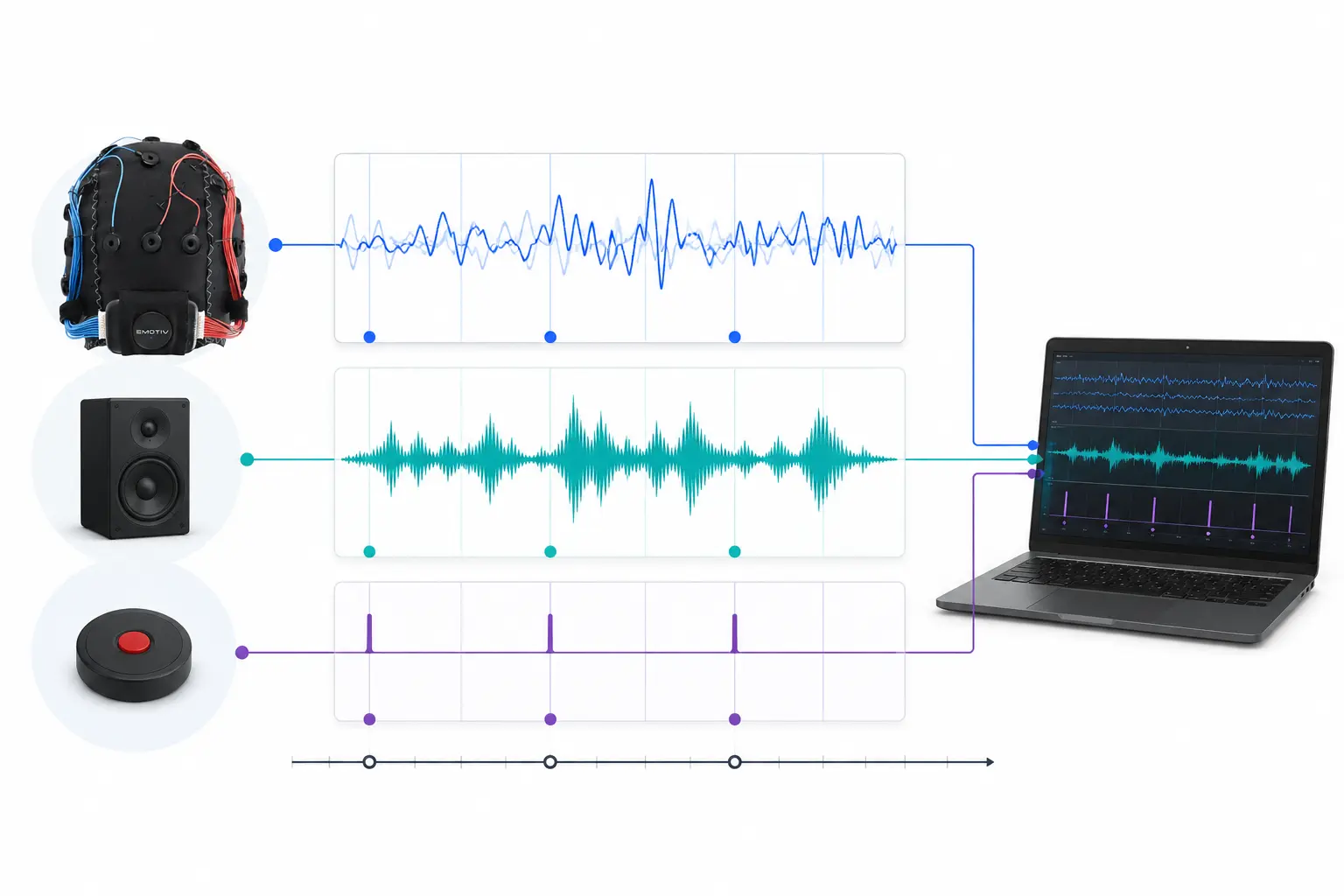
A researcher may be interested in physiological synchrony between two people listening to the same music. LSL can help us collect data from two EEG headsets separately that is also synchronized to the presentation of sound.
Some examples of other uses for LSL:
Add event markers from an experiment to an ongoing EEG data
Time-align data from multiple sources for a single participant (e.g. heart rate, EMG, EEG)
Time-align data from multiple participants (e.g. EEG Hyperscanning Studies)
1.2 How Does LSL Work?
Lab Streaming Layer is a protocol for the real-time exchange of time-series data between multiple devices. LSL can be implemented using open-source libraries for programming languages like Python, MATLAB, C++, Java and others.
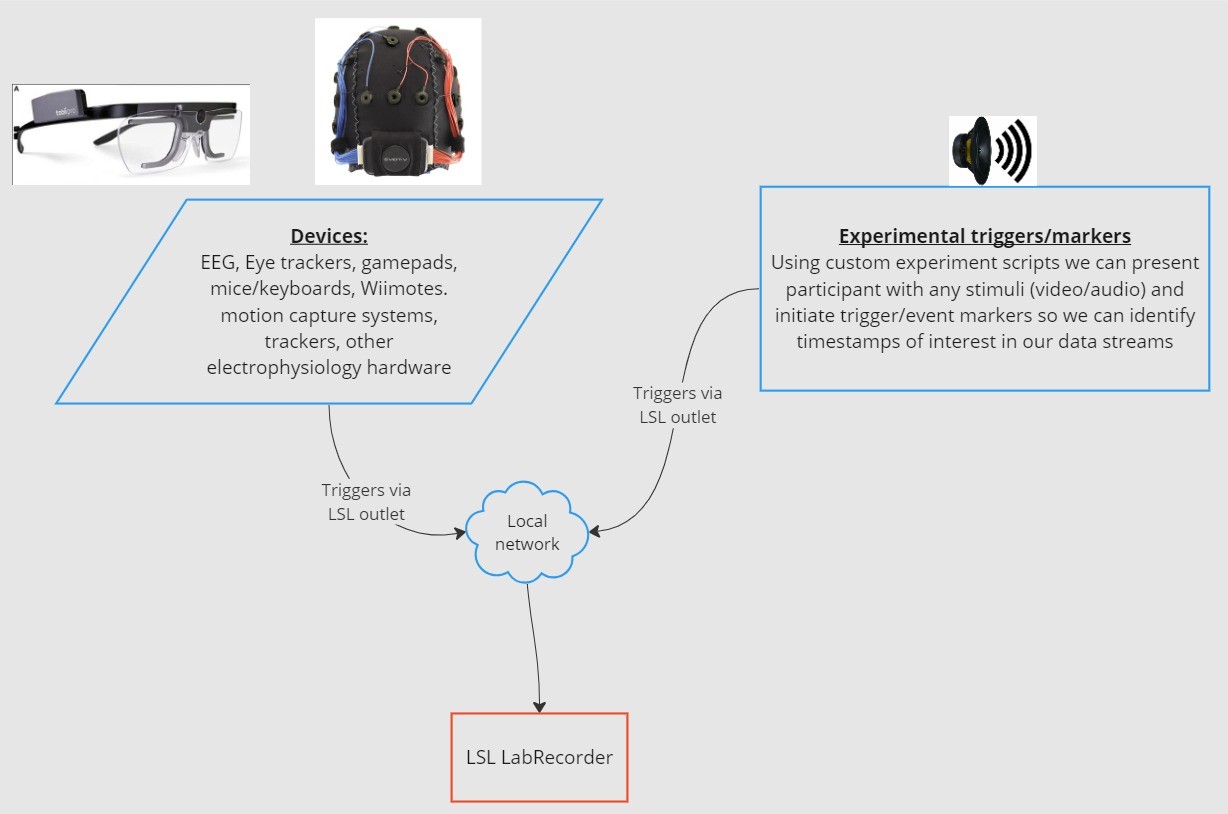
The core functionality revolves around LSL data streams:
1. An acquisition device/software collects data and creates a data stream - Physiological data can be streamed to LSL from EEG recording devices, eye-trackers, motion capture systems, heart rate monitors, etc., including metadata (sampling rate, data type, channel information, etc.) - Event markers from experiments (e.g. using PsychoPy) can also be sent as a data stream using LSL
2. The data stream is published to the network - This is how data is sent using LSL; the data stream is “broadcast” to the network - Published streams are available on the network and discoverable by other LSLsupported devices on the same network - LSL assigns each data chunk or sample a timestamp based on a common clock (following the Network Time Protocol). - The stream is pushed sampleby-sample (or chunk-by-chunk) through an “outlet”
3. Collection device(s) “subscribe” to data stream(s) - This is how data is received using LSL - Collection devices on the same network receive published data streams via “inlets”. - Each inlet receives the stream samples and metadata from only one outlet
4. Save data - Upon subscribing to a data stream, you can save it to a variable in your preferred programming language, or use LSL’s provided software LabRecorder to save it to a standard format such as .xdf.
2.0 Tutorial overview
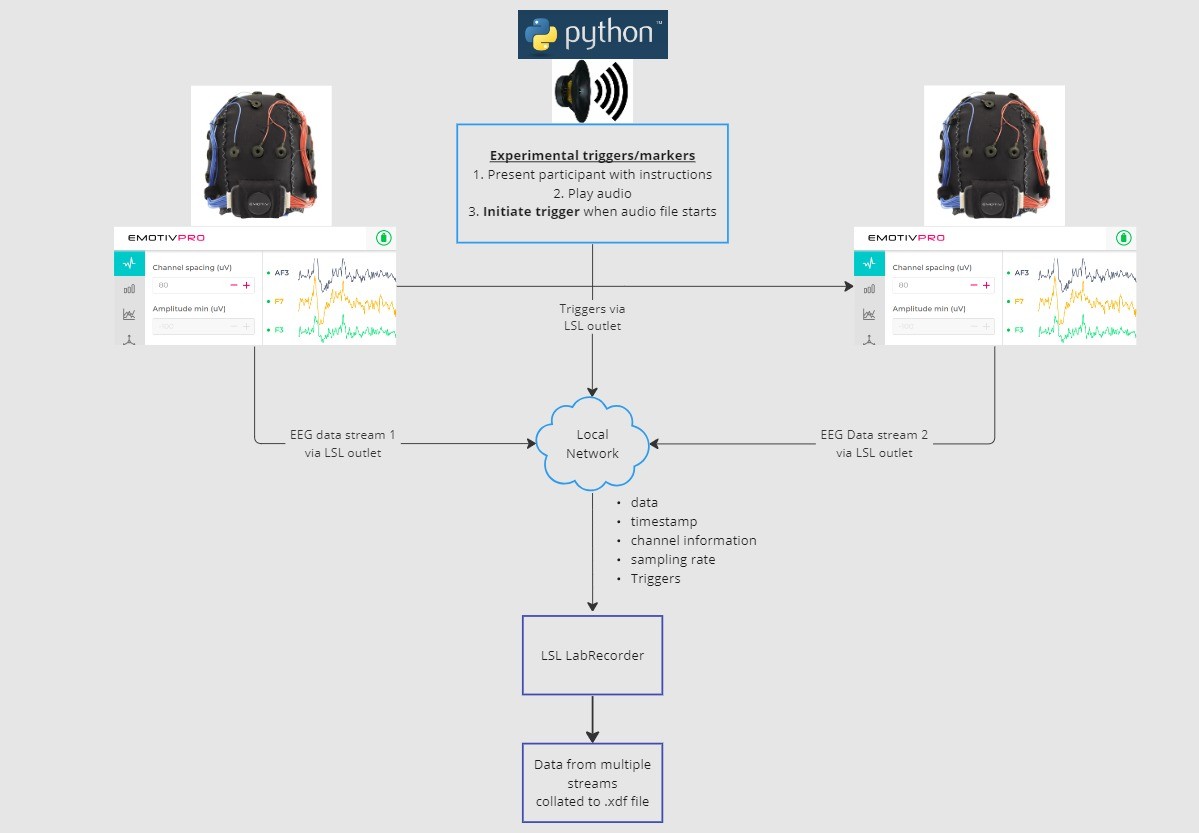
In this tutorial, we’ll take an example experimental setup and guide you through the necessary steps and code for implementing it using LSL in Python. We’ll use a Python play a sound while collecting EEG data from two people wearing Emotiv headsets. We’ll use two computers each running EmotivPRO to collect the EEG data, and broadcast each stream through a separate LSL outlet. We’ll use a Python library to play an audio file and simultaneously send a trigger each time the file starts.
STEPS:
1. Use EmotivPRO to stream data through LSL outlets that includes EEG data (and/or motion, contact quality, signal quality, etc.) 2. Play an audio track using a Python script, and simultaneously send a trigger through another LSL Use LabRecorder to capture and save all three data streams through an LSL inlet.
2.1 STEP 1 - Setup and install
You’ll need supported data acquisition devices for collecting data
• All of Emotiv’s brainware devices connect to LSL via EmotivPRO softwareInstall EmotivPRO on your device(s). You will need a valid EmotivPRO license to use LSL.
Install the Python LSL library with the following command:
pip install pylslDownload the LabRecorder software. The is a simple, free app that can be run from
the command line or using a standalone downloadFor our experiment : Install the necessary packages for playing audio using Python
pip install sounddevice soundfile
2.2 STEP 3 - Send the data from EmotivPRO via an LSL stream
Locate the “…” in the upper right corner of the app, navigate to Settings
Find the ‘Lab Streaming Layer’ section and the ‘Outlet’ subsection
Select all the datatypes that you would like to broadcast
Select the data format (32-bit float or 64-bit double)
Select whether to send data sample-by-sample or in chunks of samples
Click ‘Start’ to broadcast an LSL data stream
2.3 STEP 4 - Use a Python script to play audio and send triggers
Copy and paste the following codeblock into a python file and save it to your computer.
Locate an audio file (ideally a .wav file) you’d like to play and edit the script by changing the
variableaudio_filepathto the filepath to your audio file on your computerOpen a command prompt to interact with the command line and navigate to the folder where
your Python file is storedEnter:
python3 filename.py
• Depending your Python install, you may usepythoninstead ofpython3
Note: Replace/path/to/audio.wavwith the location of the audio file you would like to play during your experiment.
""" LSL Example: Play audio and send a trigger marker <p>This script creates an LSL marker stream, waits for the user to<br>press ENTER, then plays an audio file and sends a marker that<br>can be synchronized with EEG data collected through LabRecorder.<br>"""</p> <p>import sounddevice as sd<br>import soundfile as sf<br>from pylsl import StreamInfo, StreamOutlet</p> <p>def wait_for_keypress():<br>print("Press ENTER to start audio playback and send an LSL marker.")<br>while True:<br>if input() == "":<br>break</p> <p>def play_audio_and_send_marker(audio_file, outlet):<br>data, fs = sf.read(audio_file)</p> <pre><code>print("Playing audio and sending LSL marker...") marker_val = [1] outlet.push_sample(marker_val) sd.play(data, fs) sd.wait() print("Audio playback finished.") </code></pre> <p>if <strong>name</strong> == "<strong>main</strong>":</p> <pre><code>info = StreamInfo( name="AudioMarkers", type="Markers", channel_count=1, nominal_srate=0, channel_format="int32", source_id="uniqueMarkerID12345" ) outlet = StreamOutlet(info) while True: wait_for_keypress() audio_filepath = "/path/to/audio.wav" play_audio_and_send_marker( audio_filepath, outlet )</code></pre><h2 dir="auto">2.4 STEP 5 - Use LabRecorder to view and save all LSL streams</h2><ol dir="auto"><li data-preset-tag="p"><p>Open LabRecorder</p></li><li data-preset-tag="p"><p>Press <code>Update</code>. The available LSL streams should be visible in the stream list<br>• You should be able to see streams from both EmotivPROs (usually called “Emotiv-<br>DataStream”) and the marker stream (called “AudioMarkers”)</p></li><li data-preset-tag="p"><p>Click <code>Browse</code> to select a location to store data (and set other parameters)</p></li><li data-preset-tag="p"><p>Select all streams and press <code>Record</code> to start recording</p></li></ol><h2 dir="auto">3.0 Working with the data</h2><p dir="auto">LabRecorder outputs an XDF file (Extensible Data Format) that contains data from all the streams. XDF files are structured into, streams, each with a different header that describes what it contains (device name, data type, sampling rate, channels, and more). You can use the below codeblock to open your XDF file and display some basic information.</p><p dir="auto"><strong>Note: Replace </strong><code><strong>/path/to/your/file.xdf</strong></code><strong> with the filepath for your LabRecorder XDF output file.</strong></p><pre data-language="JSX"><code>import pyxdf </code></pre> <p>import mne<br>import matplotlib.pyplot as plt<br>import numpy as np</p> <h1>Give the path to your LSL output file here.</h1> <p>data_path = "/path/to/your/file.xdf"</p> <h1>Load the XDF file.</h1> <p>streams, fileheader = pyxdf.load_xdf(data_path)</p> <p>print("XDF File Header:", fileheader)<br>print("Number of streams found:", len(streams))</p> <p>for i, stream in enumerate(streams):<br>print("\nStream", i + 1)<br>print("Stream Name:", stream["info"]["name"][0])<br>print("Stream Type:", stream["info"]["type"][0])<br>print("Number of Channels:", stream["info"]["channel_count"][0])</p> <pre><code>sfreq = float(stream["info"]["nominal_srate"][0]) print("Sampling Rate:", sfreq) print("Number of Samples:", len(stream["time_series"])) print("First 5 data points:", stream["time_series"][:5]) channel_names = [ chan["label"][0] for chan in stream["info"]["desc"][0]["channels"][0]["channel"] ] print("Channel Names:", channel_names) channel_types = "eeg"</code></pre><h3 dir="auto"><br></h3><h2 dir="auto">4.0 Additional Resources</h2><h4 dir="auto">Official Documentation</h4><ol dir="auto"><li data-preset-tag="p"><p>Check out the <a href="1. Check out the online documentation, including the official README file on GitHub 2. Additional resources: • Code to run LSL using Emotiv’s devices, with example scripts • Useful LSL demo on YouTube • SCCN LSL GitHub repository for all associated libraries • LSL GitHub repository for a collection a submodules and apps 3. HyPyP analysis pipeline for Hyperscanning studies" target="_blank">online documentation</a>, including the <a href="https://github.com/sccn/labstreaminglayer/" target="_blank">official README file on GitHub</a></p></li><li data-preset-tag="p"><p>Additional resources:<br>• <a href="https://github.com/Emotiv/labstreaminglayer" target="_blank">Code</a> to run LSL using Emotiv’s devices, with example scripts<br>• Useful <a href="https://www.youtube.com/watch?v=Y1at7yrcFW0&list=PLVnr33MP5RMRhGwY36zHHDOmAaYTB138D" target="_blank">LSL demo on YouTube</a><br>• <a href="https://github.com/sccn/labstreaminglayer" target="_blank">SCCN LSL GitHub repository</a> for all associated libraries<br>• <a href="https://github.com/labstreaminglayer" target="_blank">LSL GitHub repository</a> for a collection a submodules and apps</p></li><li data-preset-tag="p"><p><a href="https://academic.oup.com/scan/article/16/1-2/72/5919711?login=false" target="_blank">HyPyP analysis pipeline</a> for Hyperscanning studies</p></li></ol> </code></pre
""" LSL Example: Play audio and send a trigger marker <p>This script creates an LSL marker stream, waits for the user to<br>press ENTER, then plays an audio file and sends a marker that<br>can be synchronized with EEG data collected through LabRecorder.<br>"""</p> <p>import sounddevice as sd<br>import soundfile as sf<br>from pylsl import StreamInfo, StreamOutlet</p> <p>def wait_for_keypress():<br>print("Press ENTER to start audio playback and send an LSL marker.")<br>while True:<br>if input() == "":<br>break</p> <p>def play_audio_and_send_marker(audio_file, outlet):<br>data, fs = sf.read(audio_file)</p> <pre><code>print("Playing audio and sending LSL marker...") marker_val = [1] outlet.push_sample(marker_val) sd.play(data, fs) sd.wait() print("Audio playback finished.") </code></pre> <p>if <strong>name</strong> == "<strong>main</strong>":</p> <pre><code>info = StreamInfo( name="AudioMarkers", type="Markers", channel_count=1, nominal_srate=0, channel_format="int32", source_id="uniqueMarkerID12345" ) outlet = StreamOutlet(info) while True: wait_for_keypress() audio_filepath = "/path/to/audio.wav" play_audio_and_send_marker( audio_filepath, outlet )</code></pre><h2 dir="auto">2.4 STEP 5 - Use LabRecorder to view and save all LSL streams</h2><ol dir="auto"><li data-preset-tag="p"><p>Open LabRecorder</p></li><li data-preset-tag="p"><p>Press <code>Update</code>. The available LSL streams should be visible in the stream list<br>• You should be able to see streams from both EmotivPROs (usually called “Emotiv-<br>DataStream”) and the marker stream (called “AudioMarkers”)</p></li><li data-preset-tag="p"><p>Click <code>Browse</code> to select a location to store data (and set other parameters)</p></li><li data-preset-tag="p"><p>Select all streams and press <code>Record</code> to start recording</p></li></ol><h2 dir="auto">3.0 Working with the data</h2><p dir="auto">LabRecorder outputs an XDF file (Extensible Data Format) that contains data from all the streams. XDF files are structured into, streams, each with a different header that describes what it contains (device name, data type, sampling rate, channels, and more). You can use the below codeblock to open your XDF file and display some basic information.</p><p dir="auto"><strong>Note: Replace </strong><code><strong>/path/to/your/file.xdf</strong></code><strong> with the filepath for your LabRecorder XDF output file.</strong></p><pre data-language="JSX"><code>import pyxdf </code></pre> <p>import mne<br>import matplotlib.pyplot as plt<br>import numpy as np</p> <h1>Give the path to your LSL output file here.</h1> <p>data_path = "/path/to/your/file.xdf"</p> <h1>Load the XDF file.</h1> <p>streams, fileheader = pyxdf.load_xdf(data_path)</p> <p>print("XDF File Header:", fileheader)<br>print("Number of streams found:", len(streams))</p> <p>for i, stream in enumerate(streams):<br>print("\nStream", i + 1)<br>print("Stream Name:", stream["info"]["name"][0])<br>print("Stream Type:", stream["info"]["type"][0])<br>print("Number of Channels:", stream["info"]["channel_count"][0])</p> <pre><code>sfreq = float(stream["info"]["nominal_srate"][0]) print("Sampling Rate:", sfreq) print("Number of Samples:", len(stream["time_series"])) print("First 5 data points:", stream["time_series"][:5]) channel_names = [ chan["label"][0] for chan in stream["info"]["desc"][0]["channels"][0]["channel"] ] print("Channel Names:", channel_names) channel_types = "eeg"</code></pre><h3 dir="auto"><br></h3><h2 dir="auto">4.0 Additional Resources</h2><h4 dir="auto">Official Documentation</h4><ol dir="auto"><li data-preset-tag="p"><p>Check out the <a href="1. Check out the online documentation, including the official README file on GitHub 2. Additional resources: • Code to run LSL using Emotiv’s devices, with example scripts • Useful LSL demo on YouTube • SCCN LSL GitHub repository for all associated libraries • LSL GitHub repository for a collection a submodules and apps 3. HyPyP analysis pipeline for Hyperscanning studies" target="_blank">online documentation</a>, including the <a href="https://github.com/sccn/labstreaminglayer/" target="_blank">official README file on GitHub</a></p></li><li data-preset-tag="p"><p>Additional resources:<br>• <a href="https://github.com/Emotiv/labstreaminglayer" target="_blank">Code</a> to run LSL using Emotiv’s devices, with example scripts<br>• Useful <a href="https://www.youtube.com/watch?v=Y1at7yrcFW0&list=PLVnr33MP5RMRhGwY36zHHDOmAaYTB138D" target="_blank">LSL demo on YouTube</a><br>• <a href="https://github.com/sccn/labstreaminglayer" target="_blank">SCCN LSL GitHub repository</a> for all associated libraries<br>• <a href="https://github.com/labstreaminglayer" target="_blank">LSL GitHub repository</a> for a collection a submodules and apps</p></li><li data-preset-tag="p"><p><a href="https://academic.oup.com/scan/article/16/1-2/72/5919711?login=false" target="_blank">HyPyP analysis pipeline</a> for Hyperscanning studies</p></li></ol> </code></pre
""" LSL Example: Play audio and send a trigger marker <p>This script creates an LSL marker stream, waits for the user to<br>press ENTER, then plays an audio file and sends a marker that<br>can be synchronized with EEG data collected through LabRecorder.<br>"""</p> <p>import sounddevice as sd<br>import soundfile as sf<br>from pylsl import StreamInfo, StreamOutlet</p> <p>def wait_for_keypress():<br>print("Press ENTER to start audio playback and send an LSL marker.")<br>while True:<br>if input() == "":<br>break</p> <p>def play_audio_and_send_marker(audio_file, outlet):<br>data, fs = sf.read(audio_file)</p> <pre><code>print("Playing audio and sending LSL marker...") marker_val = [1] outlet.push_sample(marker_val) sd.play(data, fs) sd.wait() print("Audio playback finished.") </code></pre> <p>if <strong>name</strong> == "<strong>main</strong>":</p> <pre><code>info = StreamInfo( name="AudioMarkers", type="Markers", channel_count=1, nominal_srate=0, channel_format="int32", source_id="uniqueMarkerID12345" ) outlet = StreamOutlet(info) while True: wait_for_keypress() audio_filepath = "/path/to/audio.wav" play_audio_and_send_marker( audio_filepath, outlet )</code></pre><h2 dir="auto">2.4 STEP 5 - Use LabRecorder to view and save all LSL streams</h2><ol dir="auto"><li data-preset-tag="p"><p>Open LabRecorder</p></li><li data-preset-tag="p"><p>Press <code>Update</code>. The available LSL streams should be visible in the stream list<br>• You should be able to see streams from both EmotivPROs (usually called “Emotiv-<br>DataStream”) and the marker stream (called “AudioMarkers”)</p></li><li data-preset-tag="p"><p>Click <code>Browse</code> to select a location to store data (and set other parameters)</p></li><li data-preset-tag="p"><p>Select all streams and press <code>Record</code> to start recording</p></li></ol><h2 dir="auto">3.0 Working with the data</h2><p dir="auto">LabRecorder outputs an XDF file (Extensible Data Format) that contains data from all the streams. XDF files are structured into, streams, each with a different header that describes what it contains (device name, data type, sampling rate, channels, and more). You can use the below codeblock to open your XDF file and display some basic information.</p><p dir="auto"><strong>Note: Replace </strong><code><strong>/path/to/your/file.xdf</strong></code><strong> with the filepath for your LabRecorder XDF output file.</strong></p><pre data-language="JSX"><code>import pyxdf </code></pre> <p>import mne<br>import matplotlib.pyplot as plt<br>import numpy as np</p> <h1>Give the path to your LSL output file here.</h1> <p>data_path = "/path/to/your/file.xdf"</p> <h1>Load the XDF file.</h1> <p>streams, fileheader = pyxdf.load_xdf(data_path)</p> <p>print("XDF File Header:", fileheader)<br>print("Number of streams found:", len(streams))</p> <p>for i, stream in enumerate(streams):<br>print("\nStream", i + 1)<br>print("Stream Name:", stream["info"]["name"][0])<br>print("Stream Type:", stream["info"]["type"][0])<br>print("Number of Channels:", stream["info"]["channel_count"][0])</p> <pre><code>sfreq = float(stream["info"]["nominal_srate"][0]) print("Sampling Rate:", sfreq) print("Number of Samples:", len(stream["time_series"])) print("First 5 data points:", stream["time_series"][:5]) channel_names = [ chan["label"][0] for chan in stream["info"]["desc"][0]["channels"][0]["channel"] ] print("Channel Names:", channel_names) channel_types = "eeg"</code></pre><h3 dir="auto"><br></h3><h2 dir="auto">4.0 Additional Resources</h2><h4 dir="auto">Official Documentation</h4><ol dir="auto"><li data-preset-tag="p"><p>Check out the <a href="1. Check out the online documentation, including the official README file on GitHub 2. Additional resources: • Code to run LSL using Emotiv’s devices, with example scripts • Useful LSL demo on YouTube • SCCN LSL GitHub repository for all associated libraries • LSL GitHub repository for a collection a submodules and apps 3. HyPyP analysis pipeline for Hyperscanning studies" target="_blank">online documentation</a>, including the <a href="https://github.com/sccn/labstreaminglayer/" target="_blank">official README file on GitHub</a></p></li><li data-preset-tag="p"><p>Additional resources:<br>• <a href="https://github.com/Emotiv/labstreaminglayer" target="_blank">Code</a> to run LSL using Emotiv’s devices, with example scripts<br>• Useful <a href="https://www.youtube.com/watch?v=Y1at7yrcFW0&list=PLVnr33MP5RMRhGwY36zHHDOmAaYTB138D" target="_blank">LSL demo on YouTube</a><br>• <a href="https://github.com/sccn/labstreaminglayer" target="_blank">SCCN LSL GitHub repository</a> for all associated libraries<br>• <a href="https://github.com/labstreaminglayer" target="_blank">LSL GitHub repository</a> for a collection a submodules and apps</p></li><li data-preset-tag="p"><p><a href="https://academic.oup.com/scan/article/16/1-2/72/5919711?login=false" target="_blank">HyPyP analysis pipeline</a> for Hyperscanning studies</p></li></ol> </code></pre
Welcome! In this tutorial we’ll learn how to use Lab Streaming Layer (LSL) in Python to collect and synchronize Emotiv EEG data from multiple devices. It will require a basic working knowledge of Python programming language.
What You'll Learn
What Lab Streaming Layer (LSL) is and why researchers use it
How to collect synchronized data from multiple Emotiv EEG devices
How to import and inspect collected data
1.1 What Is LSL and What Is It Good For?
Lab streaming layer (LSL) is an open-source toolbox which can be used to send, receive & synchronize neural, physiological, and behavioral data streams from diverse sensor hardware. Increasingly capable, precise and mobile brain- and body-sensing hardware devices (like Emotiv EEG systems) are bringing neuroscience outside the lab into the world of real-time data. Where brain measurements like EEG and MEG had once been confined to research labs, mobile devices let us collect multiple of data in more naturalistic environments, and from multiple people at once.
A researcher may be interested in physiological synchrony between two people listening to the same music. LSL can help us collect data from two EEG headsets separately that is also synchronized to the presentation of sound.
Some examples of other uses for LSL:
Add event markers from an experiment to an ongoing EEG data
Time-align data from multiple sources for a single participant (e.g. heart rate, EMG, EEG)
Time-align data from multiple participants (e.g. EEG Hyperscanning Studies)
1.2 How Does LSL Work?
Lab Streaming Layer is a protocol for the real-time exchange of time-series data between multiple devices. LSL can be implemented using open-source libraries for programming languages like Python, MATLAB, C++, Java and others.
The core functionality revolves around LSL data streams:
1. An acquisition device/software collects data and creates a data stream - Physiological data can be streamed to LSL from EEG recording devices, eye-trackers, motion capture systems, heart rate monitors, etc., including metadata (sampling rate, data type, channel information, etc.) - Event markers from experiments (e.g. using PsychoPy) can also be sent as a data stream using LSL
2. The data stream is published to the network - This is how data is sent using LSL; the data stream is “broadcast” to the network - Published streams are available on the network and discoverable by other LSLsupported devices on the same network - LSL assigns each data chunk or sample a timestamp based on a common clock (following the Network Time Protocol). - The stream is pushed sampleby-sample (or chunk-by-chunk) through an “outlet”
3. Collection device(s) “subscribe” to data stream(s) - This is how data is received using LSL - Collection devices on the same network receive published data streams via “inlets”. - Each inlet receives the stream samples and metadata from only one outlet
4. Save data - Upon subscribing to a data stream, you can save it to a variable in your preferred programming language, or use LSL’s provided software LabRecorder to save it to a standard format such as .xdf.
2.0 Tutorial overview
In this tutorial, we’ll take an example experimental setup and guide you through the necessary steps and code for implementing it using LSL in Python. We’ll use a Python play a sound while collecting EEG data from two people wearing Emotiv headsets. We’ll use two computers each running EmotivPRO to collect the EEG data, and broadcast each stream through a separate LSL outlet. We’ll use a Python library to play an audio file and simultaneously send a trigger each time the file starts.
STEPS:
1. Use EmotivPRO to stream data through LSL outlets that includes EEG data (and/or motion, contact quality, signal quality, etc.) 2. Play an audio track using a Python script, and simultaneously send a trigger through another LSL Use LabRecorder to capture and save all three data streams through an LSL inlet.
2.1 STEP 1 - Setup and install
You’ll need supported data acquisition devices for collecting data
• All of Emotiv’s brainware devices connect to LSL via EmotivPRO softwareInstall EmotivPRO on your device(s). You will need a valid EmotivPRO license to use LSL.
Install the Python LSL library with the following command:
pip install pylslDownload the LabRecorder software. The is a simple, free app that can be run from
the command line or using a standalone downloadFor our experiment : Install the necessary packages for playing audio using Python
pip install sounddevice soundfile
2.2 STEP 3 - Send the data from EmotivPRO via an LSL stream
Locate the “…” in the upper right corner of the app, navigate to Settings
Find the ‘Lab Streaming Layer’ section and the ‘Outlet’ subsection
Select all the datatypes that you would like to broadcast
Select the data format (32-bit float or 64-bit double)
Select whether to send data sample-by-sample or in chunks of samples
Click ‘Start’ to broadcast an LSL data stream
2.3 STEP 4 - Use a Python script to play audio and send triggers
Copy and paste the following codeblock into a python file and save it to your computer.
Locate an audio file (ideally a .wav file) you’d like to play and edit the script by changing the
variableaudio_filepathto the filepath to your audio file on your computerOpen a command prompt to interact with the command line and navigate to the folder where
your Python file is storedEnter:
python3 filename.py
• Depending your Python install, you may usepythoninstead ofpython3
Note: Replace/path/to/audio.wavwith the location of the audio file you would like to play during your experiment.
""" LSL Example: Play audio and send a trigger marker <p>This script creates an LSL marker stream, waits for the user to<br>press ENTER, then plays an audio file and sends a marker that<br>can be synchronized with EEG data collected through LabRecorder.<br>"""</p> <p>import sounddevice as sd<br>import soundfile as sf<br>from pylsl import StreamInfo, StreamOutlet</p> <p>def wait_for_keypress():<br>print("Press ENTER to start audio playback and send an LSL marker.")<br>while True:<br>if input() == "":<br>break</p> <p>def play_audio_and_send_marker(audio_file, outlet):<br>data, fs = sf.read(audio_file)</p> <pre><code>print("Playing audio and sending LSL marker...") marker_val = [1] outlet.push_sample(marker_val) sd.play(data, fs) sd.wait() print("Audio playback finished.") </code></pre> <p>if <strong>name</strong> == "<strong>main</strong>":</p> <pre><code>info = StreamInfo( name="AudioMarkers", type="Markers", channel_count=1, nominal_srate=0, channel_format="int32", source_id="uniqueMarkerID12345" ) outlet = StreamOutlet(info) while True: wait_for_keypress() audio_filepath = "/path/to/audio.wav" play_audio_and_send_marker( audio_filepath, outlet )</code></pre><h2 dir="auto">2.4 STEP 5 - Use LabRecorder to view and save all LSL streams</h2><ol dir="auto"><li data-preset-tag="p"><p>Open LabRecorder</p></li><li data-preset-tag="p"><p>Press <code>Update</code>. The available LSL streams should be visible in the stream list<br>• You should be able to see streams from both EmotivPROs (usually called “Emotiv-<br>DataStream”) and the marker stream (called “AudioMarkers”)</p></li><li data-preset-tag="p"><p>Click <code>Browse</code> to select a location to store data (and set other parameters)</p></li><li data-preset-tag="p"><p>Select all streams and press <code>Record</code> to start recording</p></li></ol><h2 dir="auto">3.0 Working with the data</h2><p dir="auto">LabRecorder outputs an XDF file (Extensible Data Format) that contains data from all the streams. XDF files are structured into, streams, each with a different header that describes what it contains (device name, data type, sampling rate, channels, and more). You can use the below codeblock to open your XDF file and display some basic information.</p><p dir="auto"><strong>Note: Replace </strong><code><strong>/path/to/your/file.xdf</strong></code><strong> with the filepath for your LabRecorder XDF output file.</strong></p><pre data-language="JSX"><code>import pyxdf </code></pre> <p>import mne<br>import matplotlib.pyplot as plt<br>import numpy as np</p> <h1>Give the path to your LSL output file here.</h1> <p>data_path = "/path/to/your/file.xdf"</p> <h1>Load the XDF file.</h1> <p>streams, fileheader = pyxdf.load_xdf(data_path)</p> <p>print("XDF File Header:", fileheader)<br>print("Number of streams found:", len(streams))</p> <p>for i, stream in enumerate(streams):<br>print("\nStream", i + 1)<br>print("Stream Name:", stream["info"]["name"][0])<br>print("Stream Type:", stream["info"]["type"][0])<br>print("Number of Channels:", stream["info"]["channel_count"][0])</p> <pre><code>sfreq = float(stream["info"]["nominal_srate"][0]) print("Sampling Rate:", sfreq) print("Number of Samples:", len(stream["time_series"])) print("First 5 data points:", stream["time_series"][:5]) channel_names = [ chan["label"][0] for chan in stream["info"]["desc"][0]["channels"][0]["channel"] ] print("Channel Names:", channel_names) channel_types = "eeg"</code></pre><h3 dir="auto"><br></h3><h2 dir="auto">4.0 Additional Resources</h2><h4 dir="auto">Official Documentation</h4><ol dir="auto"><li data-preset-tag="p"><p>Check out the <a href="1. Check out the online documentation, including the official README file on GitHub 2. Additional resources: • Code to run LSL using Emotiv’s devices, with example scripts • Useful LSL demo on YouTube • SCCN LSL GitHub repository for all associated libraries • LSL GitHub repository for a collection a submodules and apps 3. HyPyP analysis pipeline for Hyperscanning studies" target="_blank">online documentation</a>, including the <a href="https://github.com/sccn/labstreaminglayer/" target="_blank">official README file on GitHub</a></p></li><li data-preset-tag="p"><p>Additional resources:<br>• <a href="https://github.com/Emotiv/labstreaminglayer" target="_blank">Code</a> to run LSL using Emotiv’s devices, with example scripts<br>• Useful <a href="https://www.youtube.com/watch?v=Y1at7yrcFW0&list=PLVnr33MP5RMRhGwY36zHHDOmAaYTB138D" target="_blank">LSL demo on YouTube</a><br>• <a href="https://github.com/sccn/labstreaminglayer" target="_blank">SCCN LSL GitHub repository</a> for all associated libraries<br>• <a href="https://github.com/labstreaminglayer" target="_blank">LSL GitHub repository</a> for a collection a submodules and apps</p></li><li data-preset-tag="p"><p><a href="https://academic.oup.com/scan/article/16/1-2/72/5919711?login=false" target="_blank">HyPyP analysis pipeline</a> for Hyperscanning studies</p></li></ol> </code></pre
Welcome! In this tutorial we’ll learn how to use Lab Streaming Layer (LSL) in Python to collect and synchronize Emotiv EEG data from multiple devices. It will require a basic working knowledge of Python programming language.
What You'll Learn
What Lab Streaming Layer (LSL) is and why researchers use it
How to collect synchronized data from multiple Emotiv EEG devices
How to import and inspect collected data
1.1 What Is LSL and What Is It Good For?
Lab streaming layer (LSL) is an open-source toolbox which can be used to send, receive & synchronize neural, physiological, and behavioral data streams from diverse sensor hardware. Increasingly capable, precise and mobile brain- and body-sensing hardware devices (like Emotiv EEG systems) are bringing neuroscience outside the lab into the world of real-time data. Where brain measurements like EEG and MEG had once been confined to research labs, mobile devices let us collect multiple of data in more naturalistic environments, and from multiple people at once.
A researcher may be interested in physiological synchrony between two people listening to the same music. LSL can help us collect data from two EEG headsets separately that is also synchronized to the presentation of sound.
Some examples of other uses for LSL:
Add event markers from an experiment to an ongoing EEG data
Time-align data from multiple sources for a single participant (e.g. heart rate, EMG, EEG)
Time-align data from multiple participants (e.g. EEG Hyperscanning Studies)
1.2 How Does LSL Work?
Lab Streaming Layer is a protocol for the real-time exchange of time-series data between multiple devices. LSL can be implemented using open-source libraries for programming languages like Python, MATLAB, C++, Java and others.
The core functionality revolves around LSL data streams:
1. An acquisition device/software collects data and creates a data stream - Physiological data can be streamed to LSL from EEG recording devices, eye-trackers, motion capture systems, heart rate monitors, etc., including metadata (sampling rate, data type, channel information, etc.) - Event markers from experiments (e.g. using PsychoPy) can also be sent as a data stream using LSL
2. The data stream is published to the network - This is how data is sent using LSL; the data stream is “broadcast” to the network - Published streams are available on the network and discoverable by other LSLsupported devices on the same network - LSL assigns each data chunk or sample a timestamp based on a common clock (following the Network Time Protocol). - The stream is pushed sampleby-sample (or chunk-by-chunk) through an “outlet”
3. Collection device(s) “subscribe” to data stream(s) - This is how data is received using LSL - Collection devices on the same network receive published data streams via “inlets”. - Each inlet receives the stream samples and metadata from only one outlet
4. Save data - Upon subscribing to a data stream, you can save it to a variable in your preferred programming language, or use LSL’s provided software LabRecorder to save it to a standard format such as .xdf.
2.0 Tutorial overview
In this tutorial, we’ll take an example experimental setup and guide you through the necessary steps and code for implementing it using LSL in Python. We’ll use a Python play a sound while collecting EEG data from two people wearing Emotiv headsets. We’ll use two computers each running EmotivPRO to collect the EEG data, and broadcast each stream through a separate LSL outlet. We’ll use a Python library to play an audio file and simultaneously send a trigger each time the file starts.
STEPS:
1. Use EmotivPRO to stream data through LSL outlets that includes EEG data (and/or motion, contact quality, signal quality, etc.) 2. Play an audio track using a Python script, and simultaneously send a trigger through another LSL Use LabRecorder to capture and save all three data streams through an LSL inlet.
2.1 STEP 1 - Setup and install
You’ll need supported data acquisition devices for collecting data
• All of Emotiv’s brainware devices connect to LSL via EmotivPRO softwareInstall EmotivPRO on your device(s). You will need a valid EmotivPRO license to use LSL.
Install the Python LSL library with the following command:
pip install pylslDownload the LabRecorder software. The is a simple, free app that can be run from
the command line or using a standalone downloadFor our experiment : Install the necessary packages for playing audio using Python
pip install sounddevice soundfile
2.2 STEP 3 - Send the data from EmotivPRO via an LSL stream
Locate the “…” in the upper right corner of the app, navigate to Settings
Find the ‘Lab Streaming Layer’ section and the ‘Outlet’ subsection
Select all the datatypes that you would like to broadcast
Select the data format (32-bit float or 64-bit double)
Select whether to send data sample-by-sample or in chunks of samples
Click ‘Start’ to broadcast an LSL data stream
2.3 STEP 4 - Use a Python script to play audio and send triggers
Copy and paste the following codeblock into a python file and save it to your computer.
Locate an audio file (ideally a .wav file) you’d like to play and edit the script by changing the
variableaudio_filepathto the filepath to your audio file on your computerOpen a command prompt to interact with the command line and navigate to the folder where
your Python file is storedEnter:
python3 filename.py
• Depending your Python install, you may usepythoninstead ofpython3
Note: Replace/path/to/audio.wavwith the location of the audio file you would like to play during your experiment.
""" LSL Example: Play audio and send a trigger marker <p>This script creates an LSL marker stream, waits for the user to<br>press ENTER, then plays an audio file and sends a marker that<br>can be synchronized with EEG data collected through LabRecorder.<br>"""</p> <p>import sounddevice as sd<br>import soundfile as sf<br>from pylsl import StreamInfo, StreamOutlet</p> <p>def wait_for_keypress():<br>print("Press ENTER to start audio playback and send an LSL marker.")<br>while True:<br>if input() == "":<br>break</p> <p>def play_audio_and_send_marker(audio_file, outlet):<br>data, fs = sf.read(audio_file)</p> <pre><code>print("Playing audio and sending LSL marker...") marker_val = [1] outlet.push_sample(marker_val) sd.play(data, fs) sd.wait() print("Audio playback finished.") </code></pre> <p>if <strong>name</strong> == "<strong>main</strong>":</p> <pre><code>info = StreamInfo( name="AudioMarkers", type="Markers", channel_count=1, nominal_srate=0, channel_format="int32", source_id="uniqueMarkerID12345" ) outlet = StreamOutlet(info) while True: wait_for_keypress() audio_filepath = "/path/to/audio.wav" play_audio_and_send_marker( audio_filepath, outlet )</code></pre><h2 dir="auto">2.4 STEP 5 - Use LabRecorder to view and save all LSL streams</h2><ol dir="auto"><li data-preset-tag="p"><p>Open LabRecorder</p></li><li data-preset-tag="p"><p>Press <code>Update</code>. The available LSL streams should be visible in the stream list<br>• You should be able to see streams from both EmotivPROs (usually called “Emotiv-<br>DataStream”) and the marker stream (called “AudioMarkers”)</p></li><li data-preset-tag="p"><p>Click <code>Browse</code> to select a location to store data (and set other parameters)</p></li><li data-preset-tag="p"><p>Select all streams and press <code>Record</code> to start recording</p></li></ol><h2 dir="auto">3.0 Working with the data</h2><p dir="auto">LabRecorder outputs an XDF file (Extensible Data Format) that contains data from all the streams. XDF files are structured into, streams, each with a different header that describes what it contains (device name, data type, sampling rate, channels, and more). You can use the below codeblock to open your XDF file and display some basic information.</p><p dir="auto"><strong>Note: Replace </strong><code><strong>/path/to/your/file.xdf</strong></code><strong> with the filepath for your LabRecorder XDF output file.</strong></p><pre data-language="JSX"><code>import pyxdf </code></pre> <p>import mne<br>import matplotlib.pyplot as plt<br>import numpy as np</p> <h1>Give the path to your LSL output file here.</h1> <p>data_path = "/path/to/your/file.xdf"</p> <h1>Load the XDF file.</h1> <p>streams, fileheader = pyxdf.load_xdf(data_path)</p> <p>print("XDF File Header:", fileheader)<br>print("Number of streams found:", len(streams))</p> <p>for i, stream in enumerate(streams):<br>print("\nStream", i + 1)<br>print("Stream Name:", stream["info"]["name"][0])<br>print("Stream Type:", stream["info"]["type"][0])<br>print("Number of Channels:", stream["info"]["channel_count"][0])</p> <pre><code>sfreq = float(stream["info"]["nominal_srate"][0]) print("Sampling Rate:", sfreq) print("Number of Samples:", len(stream["time_series"])) print("First 5 data points:", stream["time_series"][:5]) channel_names = [ chan["label"][0] for chan in stream["info"]["desc"][0]["channels"][0]["channel"] ] print("Channel Names:", channel_names) channel_types = "eeg"</code></pre><h3 dir="auto"><br></h3><h2 dir="auto">4.0 Additional Resources</h2><h4 dir="auto">Official Documentation</h4><ol dir="auto"><li data-preset-tag="p"><p>Check out the <a href="1. Check out the online documentation, including the official README file on GitHub 2. Additional resources: • Code to run LSL using Emotiv’s devices, with example scripts • Useful LSL demo on YouTube • SCCN LSL GitHub repository for all associated libraries • LSL GitHub repository for a collection a submodules and apps 3. HyPyP analysis pipeline for Hyperscanning studies" target="_blank">online documentation</a>, including the <a href="https://github.com/sccn/labstreaminglayer/" target="_blank">official README file on GitHub</a></p></li><li data-preset-tag="p"><p>Additional resources:<br>• <a href="https://github.com/Emotiv/labstreaminglayer" target="_blank">Code</a> to run LSL using Emotiv’s devices, with example scripts<br>• Useful <a href="https://www.youtube.com/watch?v=Y1at7yrcFW0&list=PLVnr33MP5RMRhGwY36zHHDOmAaYTB138D" target="_blank">LSL demo on YouTube</a><br>• <a href="https://github.com/sccn/labstreaminglayer" target="_blank">SCCN LSL GitHub repository</a> for all associated libraries<br>• <a href="https://github.com/labstreaminglayer" target="_blank">LSL GitHub repository</a> for a collection a submodules and apps</p></li><li data-preset-tag="p"><p><a href="https://academic.oup.com/scan/article/16/1-2/72/5919711?login=false" target="_blank">HyPyP analysis pipeline</a> for Hyperscanning studies</p></li></ol> </code></pre
Continue reading