



Emotiv Epoc X

Quick start guide

Emotiv Epoc X

Quick start guide

Emotiv Epoc X

Quick start guide

Download Emotiv Launcher

macOS 11

Big Sur 11.0 or above

Windows

Windows 10 (64-bit) v1809+
Windows 11 

Ubuntu Beta

22.04
(Beta release, 64-bit only)

Rasperry Pi Beta

OS – Debian version 11
(Beta release, 32-bit)
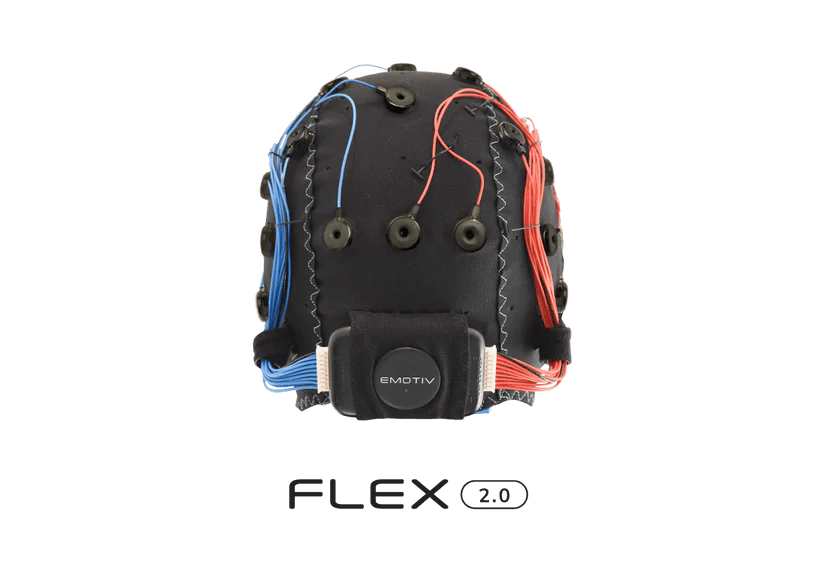
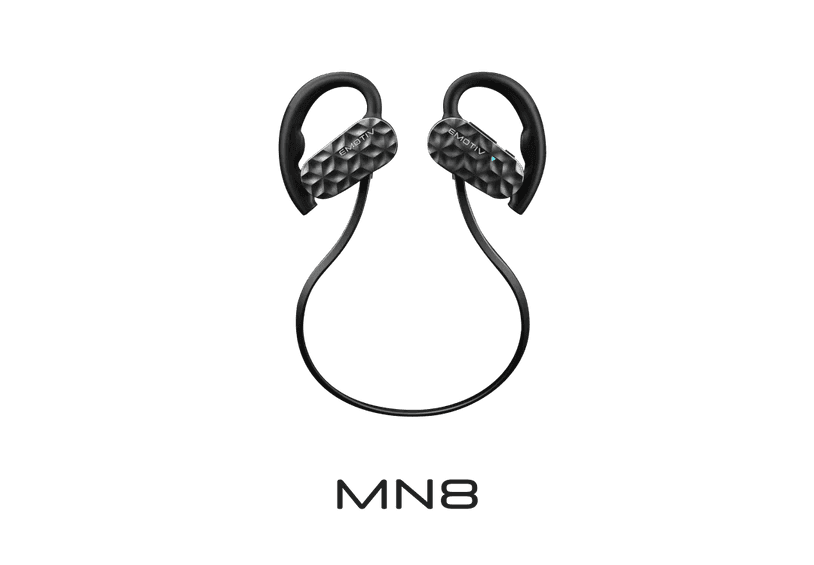
Not available on FLEX & MN8

Download Emotiv Launcher

macOS 11

Big Sur 11.0 or above

Windows

Windows 10 (64-bit) v1809+
Windows 11 

Ubuntu Beta

22.04
(Beta release, 64-bit only)

Rasperry Pi Beta

OS – Debian version 11
(Beta release, 32-bit)
Not available on FLEX & MN8

Download Emotiv Launcher

macOS 11

Big Sur 11.0 or above

Windows

Windows 10 (64-bit) v1809+
Windows 11 

Ubuntu Beta

22.04
(Beta release, 64-bit only)

Rasperry Pi Beta

OS – Debian version 11
(Beta release, 32-bit)
Not available on FLEX & MN8

Unboxing your EPOC X

Unboxing your EPOC X

Remove the sleeve from the box. When you open the box, you will find the following:

Remove the sleeve from the box. When you open the box, you will find the following:

Epoc X Travel Case

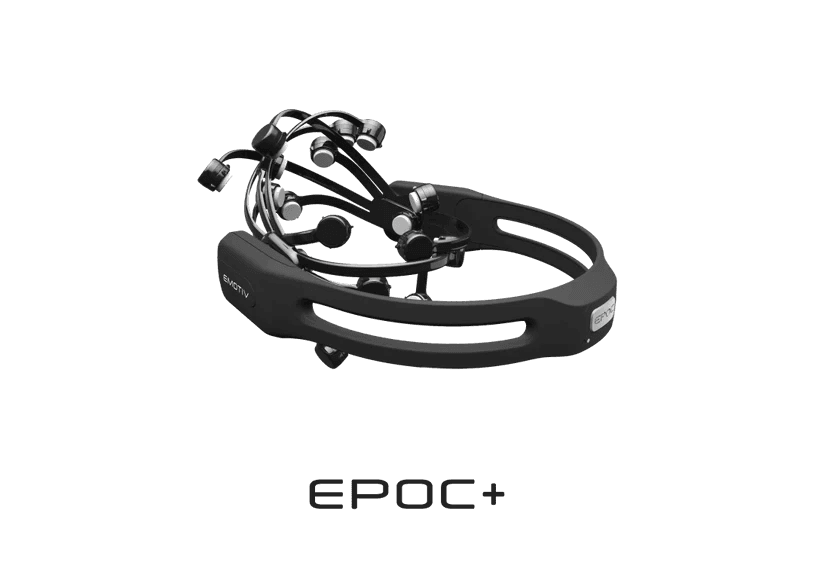
Epoc X Headset

Felts Pack (80pc)

USB-C Charging Cable

USB Extended (1m)

USB-A to C adaptor

Sample Saline Fluid (60ml)

Quick Start Guide
STEP 1

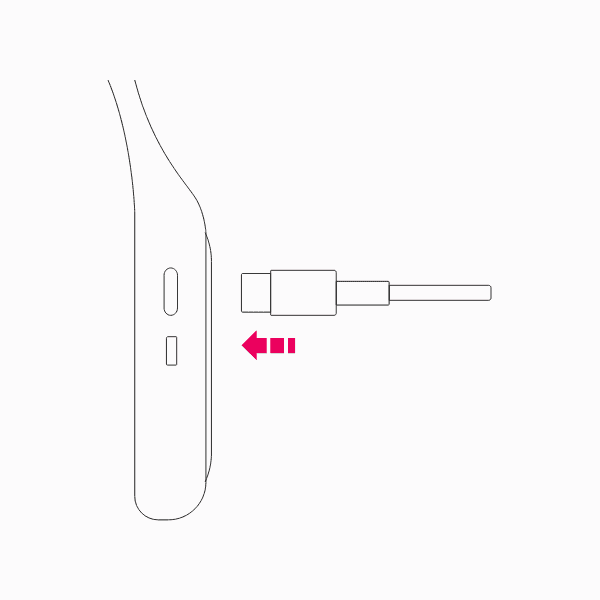
Charge your headset before use

Plug the USB-C cable into the charging port located on the right-side of the headset. Charge until the indicator light on the headset turns green.

STEP 2

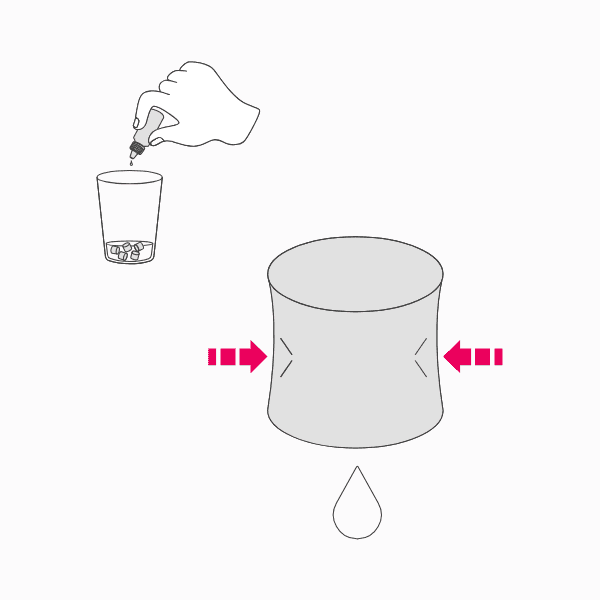
Hydrate the sensor felts

To hydrate the sensor felts, place them in a glass then add the saline and soak.Squeeze out excess fluid.
STEP 3

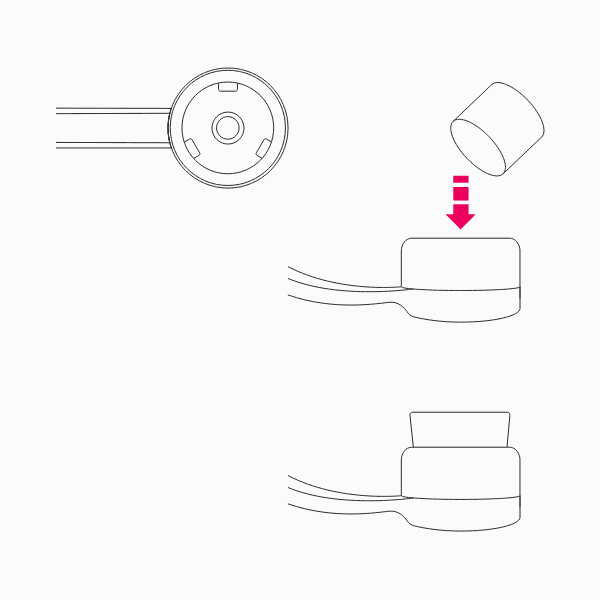
Fitting the sensor felts

Each hydrated sensor felt can be fitted into each sensor arm, by pushing it inside the opening, then making sure it’s secured in place.

STEP 4

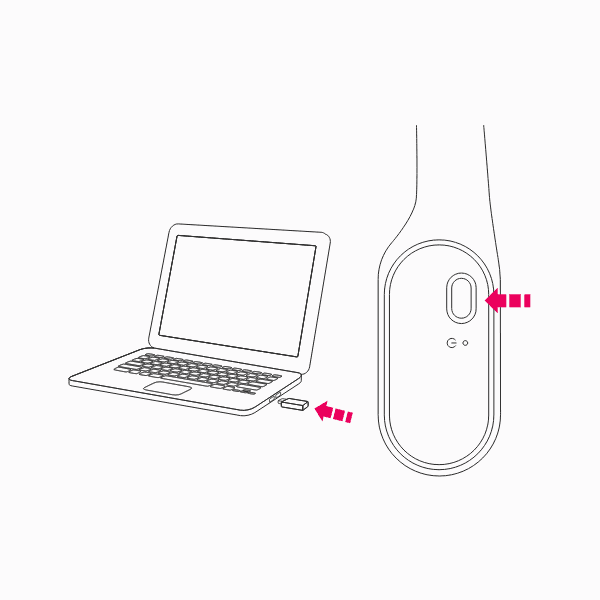
Connecting the EPOC X

Plug the USB receiver dongle into your computer, one LED will light. Next press the power button on the headset. The headset should beep and LED next to the power button will turn white. A second LED on the dongle should light and start to flash indicating connection / data transmission.
STEP 5

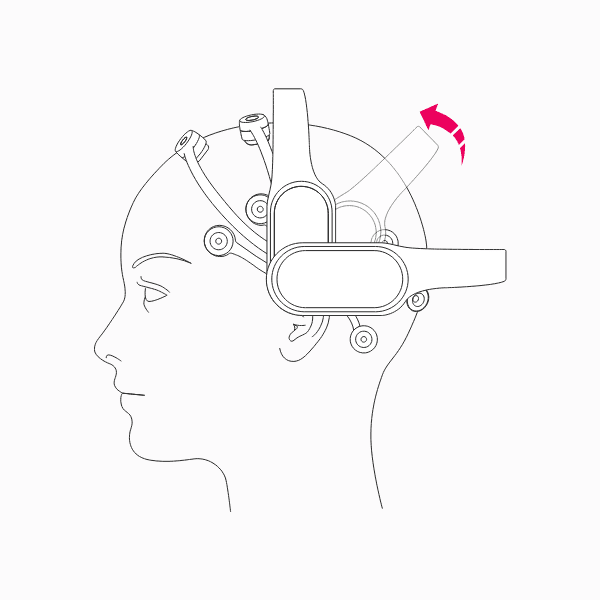
Headband settings

Fit the headset onto your participant and choose if you want to have the headband at the rear or top of the head. To adjust the headband, hold the arm and push the headband up or down to rotate. It will then lock into place.

When you are rotating the headband, make sure you update the settings in your application so the motion data can be interpreted correctly.

STEP 6

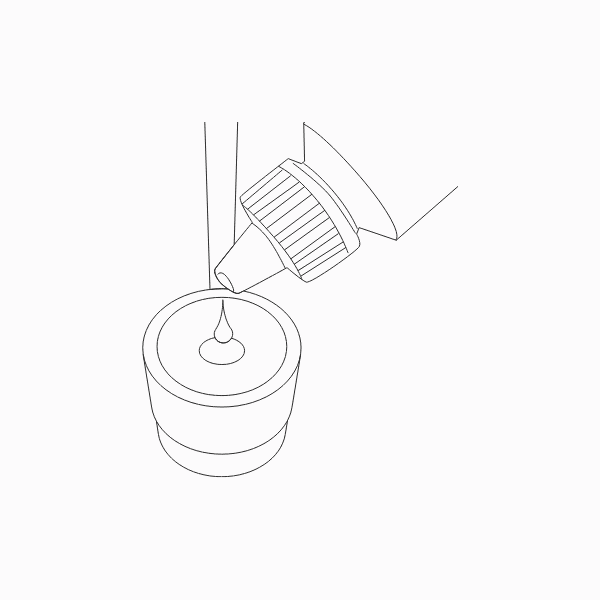
Rehydrating the sensor felts

You do not need to take the headset off to top up saline. To rehydrate the sensor felts use the opening on the top of the sensor and add the saline.
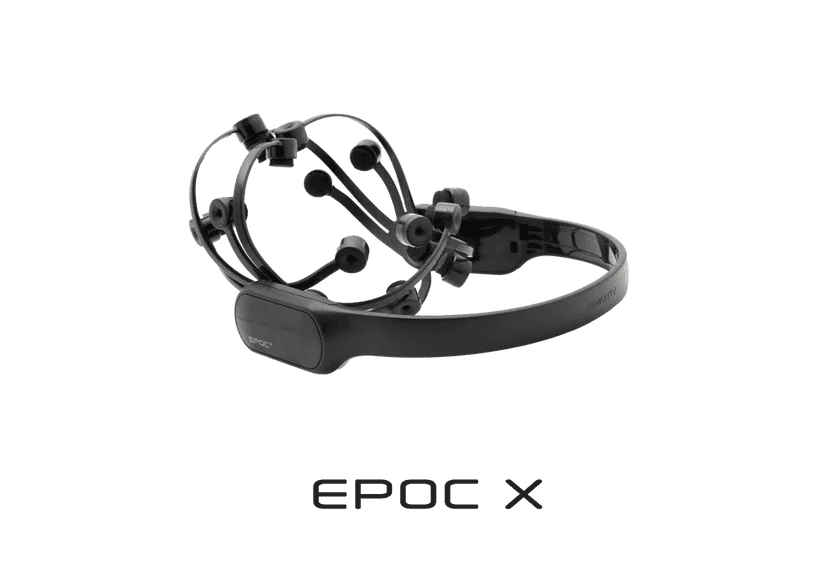
For more help regarding the usage of EMOTIV Epoc X, please consult the manual or contact customer support.

Quick Start Guide

Quick Start Guide

Quick Start Guide

© 2025 EMOTIV, All rights reserved.

Consent

Your Privacy Choices (Cookie Settings)

*Disclaimer – EMOTIV products are intended to be used for research applications and personal use only. Our products are not sold as Medical Devices as defined in EU directive 93/42/EEC. Our
products are not designed or intended to be used for diagnosis or treatment of disease.

© 2025 EMOTIV, All rights reserved.

Consent

Your Privacy Choices (Cookie Settings)

*Disclaimer – EMOTIV products are intended to be used for research applications and personal use only. Our products are not sold as Medical Devices as defined in EU directive 93/42/EEC. Our
products are not designed or intended to be used for diagnosis or treatment of disease.

© 2025 EMOTIV, All rights reserved.

Consent

Your Privacy Choices (Cookie Settings)

*Disclaimer – EMOTIV products are intended to be used for research applications and personal use only. Our products are not sold as Medical Devices as defined in EU directive 93/42/EEC. Our
products are not designed or intended to be used for diagnosis or treatment of disease.