لایه استریمینگ آزمایشگاهی (LSL) برای همگامسازی چندین جریان داده
دکتر روشینی راندنیا و لوکاس کلاین
بهروزرسانی در
۲۸ اردیبهشت ۱۴۰۳
لایه استریمینگ آزمایشگاهی (LSL) برای همگامسازی چندین جریان داده
دکتر روشینی راندنیا و لوکاس کلاین
بهروزرسانی در
۲۸ اردیبهشت ۱۴۰۳
لایه استریمینگ آزمایشگاهی (LSL) برای همگامسازی چندین جریان داده
دکتر روشینی راندنیا و لوکاس کلاین
بهروزرسانی در
۲۸ اردیبهشت ۱۴۰۳
خوش آمدید! در این آموزش یاد خواهیم گرفت که چگونه از Lab Streaming Layer (LSL) در پایتون برای جمعآوری و همگامسازی دادههای EEG Emotiv از چندین دستگاه استفاده کنیم. این کار به دانش ابتدایی و عملی زبان برنامهنویسی پایتون نیاز دارد.
آنچه یاد خواهید گرفت
Lab Streaming Layer (LSL) چیست و چرا محققان از آن استفاده میکنند
چگونه دادههای همگامسازی شده را از چندین دستگاه EEG متعلق به Emotiv جمعآوری کنیم
چگونه دادههای جمعآوری شده را وارد و بررسی کنیم
1.1 LSL چیست و برای چه کاری مناسب است؟
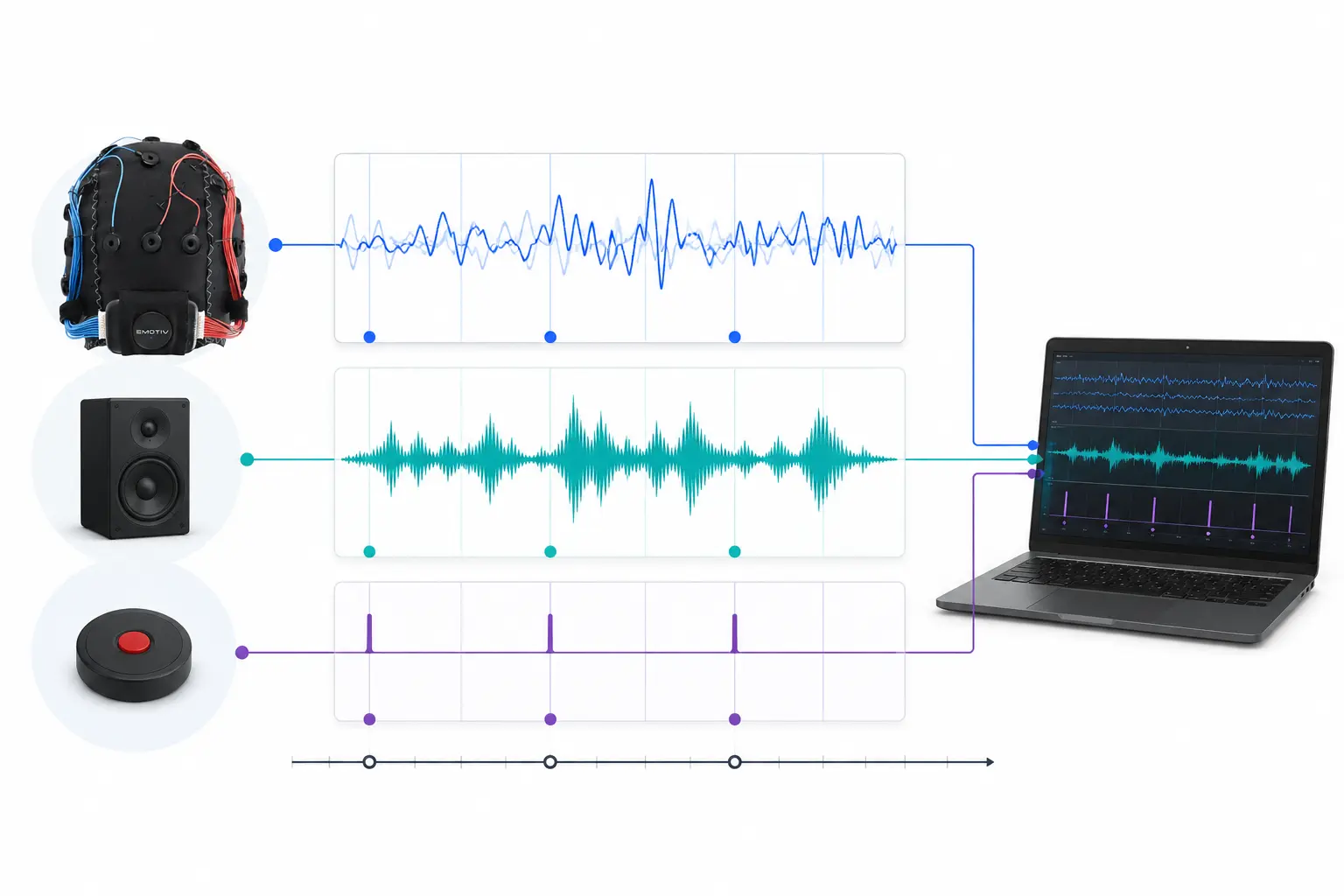
لایه استریمینگ آزمایشگاهی (LSL) یک جعبه ابزار متنباز است که میتواند برای ارسال، دریافت و همگامسازی جریانهای دادههای عصبی، فیزیولوژیکی و رفتاری از سختافزارهای حسگر مختلف استفاده شود. دستگاههای سختافزاری حسگر مغز و بدن که به طور فزایندهای توانمندتر، دقیقتر و قابلحملتر میشوند (مانند سیستمهای EEG متعلق به Emotiv) علوم اعصاب را از آزمایشگاه به دنیای دادههای بلادرنگ (real-time) میآورند. در حالی که اندازهگیریهای مغزی مانند EEG و MEG زمانی به آزمایشگاههای تحقیقاتی محدود بودند، دستگاههای تلفن همراه به ما اجازه میدهند مقادیر متعددی از دادهها را در محیطهای طبیعیتر و از چندین نفر به طور همزمان جمعآوری کنیم.
یک محقق ممکن است علاقهمند به همگامسازی فیزیولوژیکی بین دو فرد باشد که به یک موسیقی گوش میدهند. LSL میتواند به ما کمک کند دادهها را به طور جداگانه از دو هدست EEG جمعآوری کنیم که با پخش صدا همگامسازی شدهاند.
چند نمونه از کاربردهای دیگر LSL:
اضافه کردن نشانگرهای رویداد (event markers) از یک آزمایش به دادههای در حال اجرای EEG
تراز زمانی دادهها از چندین منبع برای یک شرکتکننده منفرد (مانند ضربان قلب، EMG، EEG)
تراز زمانی دادههای چندین شرکتکننده (مانند مطالعات هایپراسکنینگ EEG)
1.2 LSL چگونه کار میکند؟
تکنولوژی Lab Streaming Layer یک پروتکل برای تبادل بلادرنگ دادههای سری زمانی بین چندین دستگاه است. LSL را میتوان با استفاده از کتابخانههای متنباز برای زبانهای برنامهنویسی مانند پایتون، متلب، ++C، جاوا و غیره پیادهسازی کرد.
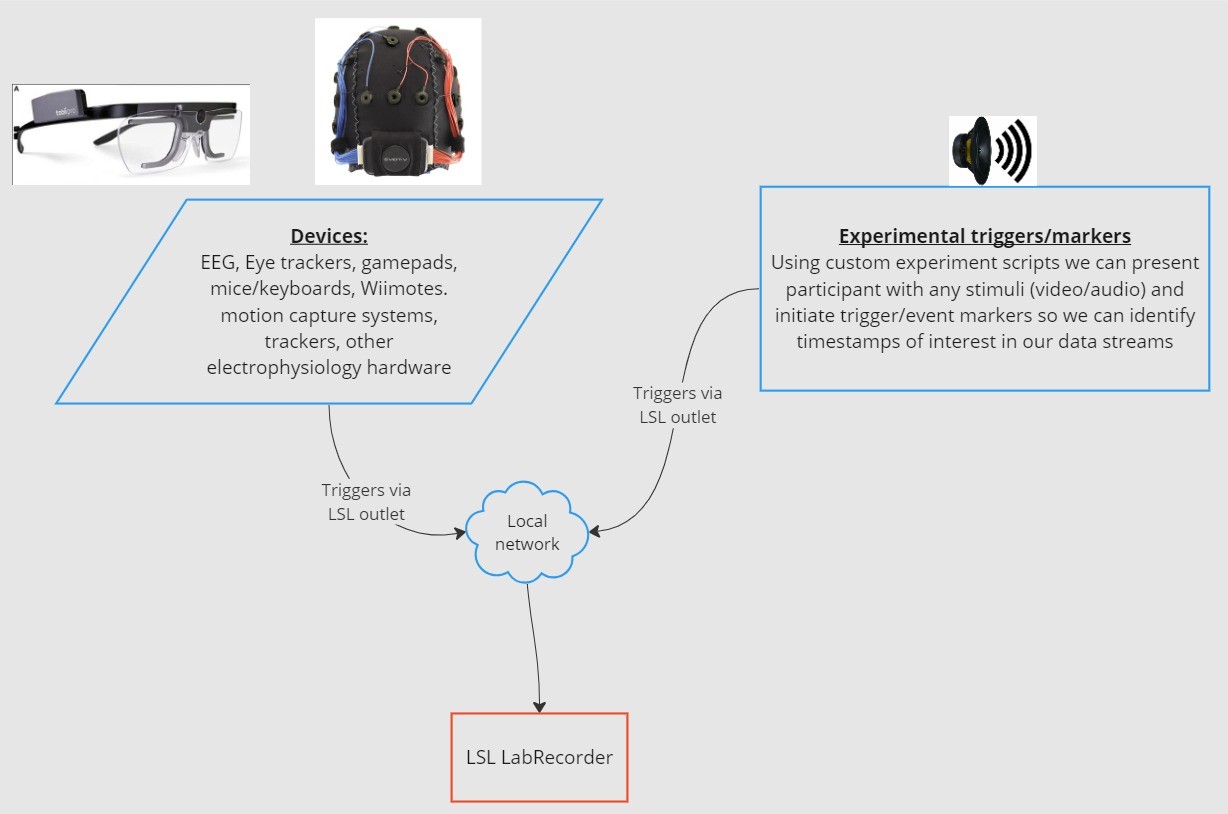
عملکرد اصلی حول محور جریانهای داده LSL میچرخد:
۱. یک دستگاه/نرمافزار دریافتکننده، دادهها را جمعآوری کرده و یک جریان داده ایجاد میکند - دادههای فیزیولوژیکی را میتوان از دستگاههای ثبت EEG، ردیابهای چشمی، سیستمهای ثبت حرکت، مانیتورهای ضربان قلب و غیره به LSL استریم کرد، از جمله متادیتا (نرخ نمونهبرداری، نوع داده، اطلاعات کانال و غیره) - نشانگرهای رویداد حاصل از آزمایشها (مثلاً با استفاده از PsychoPy) نیز میتوانند به عنوان جریان داده با استفاده از LSL ارسال شوند.
۲. جریان داده روی شبکه منتشر میشود - این نحوه ارسال داده با استفاده از LSL است؛ جریان داده روی شبکه "پخش" (broadcast) میشود - جریانهای منتشر شده در شبکه در دسترس هستند و توسط سایر دستگاههای پشتیبانیشده توسط LSL در همان شبکه قابل شناسایی میباشند - LSL به هر بخش داده یا نمونه یک برچسب زمانی بر اساس یک ساعت مشترک غیراختصاصی (پیروی از پروتکل زمان شبکه یا NTP) اختصاص میدهد. - جریان داده نمونهبهنمونه (یا بخشبهبخش) از طریق یک "خروجی" (outlet) به بیرون فرستاده میشود.
۳. دستگاه(های) جمعآوری به جریان(های) داده "مشترک" میشوند - این نحوه دریافت داده با استفاده از LSL است - دستگاههای جمعآوری در همان شبکه، جریانهای داده منتشر شده را از طریق "ورودیها" (inlets) دریافت میکنند. - هر ورودی نمونههای جریان داده و متادیتا را تنها از یک خروجی دریافت میکند
۴. ذخیره دادهها - پس از مشترک شدن در یک جریان داده، میتوانید آن را در یک متغیر در زبان برنامهنویسی ترجیحی خود ذخیره کنید، یا از نرمافزار ارائه شده توسط LSL به نام LabRecorder برای ذخیره آن در یک قالب استاندارد مانند xdf. استفاده کنید.
2.0 نمای کلی آموزش
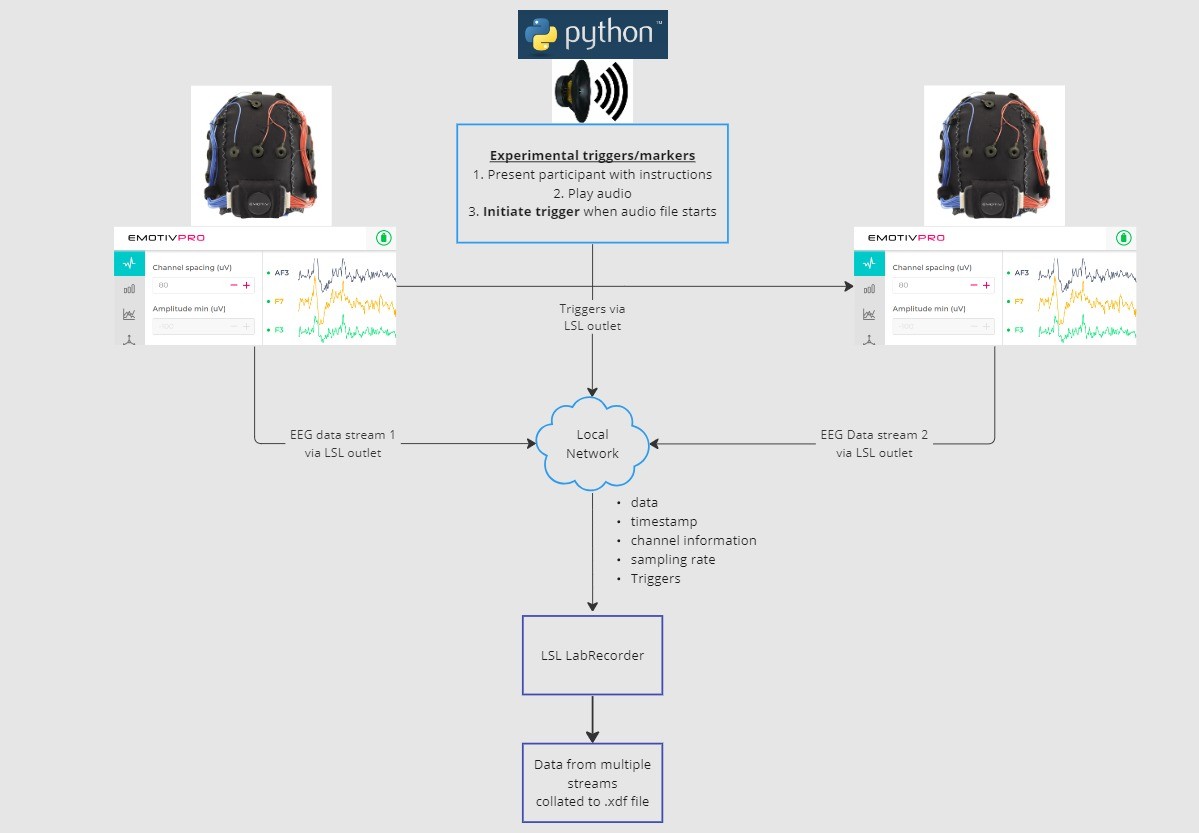
در این آموزش، ما یک نمونه راهاندازی آزمایشی را در نظر میگیریم و شما را در مراحل و کدهای لازم برای پیادهسازی آن با استفاده از LSL در پایتون راهنمایی میکنیم. ما از پایتون برای پخش صدا در حین جمعآوری دادههای EEG از دو نفر که هدستهای Emotiv بر سر دارند استفاده خواهیم کرد. ما از دو رایانه که هر کدام نرمافزار EmotivPRO را اجرا میکنند برای جمعآوری دادههای EEG استفاده میکنیم و هر جریان داده را از طریق یک خروجی LSL جداگانه پخش خواهیم کرد. همچنین از یک کتابخانه پایتون برای پخش یک فایل صوتی و ارسال همزمان یک تریگر (محرک) در هر بار شروع فایل استفاده خواهیم کرد.
مراحل:
۱. از EmotivPRO برای پخش جریان داده از طریق خروجیهای LSL که شامل دادههای EEG (و/یا حرکت، کیفیت تماس، کیفیت سیگنال و غیره) است استفاده کنید. ۲. یک قطعه صوتی را با استفاده از اسکریپت پایتون پخش کنید و همزمان یک تریگر را از طریق یک LSL دیگر ارسال کنید. از LabRecorder برای ثبت و ذخیره هر سه جریان داده از طریق یک ورودی LSL استفاده کنید.
2.1 مرحله ۱ - راهاندازی و نصب
شما برای جمعآوری دادهها به دستگاههای دریافت داده پشتیبانیشده نیاز دارید
• تمام دستگاههای مغزی Emotiv از طریق نرمافزار EmotivPRO به LSL متصل میشوندنرمافزار EmotivPRO را روی دستگاه(های) خود نصب کنید. برای استفاده از LSL به یک لایسنس معتبر EmotivPRO نیاز دارید.
کتابخانه Python LSL را با دستور زیر نصب کنید:
pip install pylslنرمافزار LabRecorder را دانلود کنید. این یک برنامه ساده و رایگان است که میتوان آن را از طریق
خط فرمان یا با دانلود نسخه مستقل اجرا کردبرای آزمایش ما: بستههای لازم برای پخش صدا با استفاده از پایتون را نصب کنید
pip install sounddevice soundfile
2.2 مرحله ۳ - ارسال دادهها از EmotivPRO از طریق جریان LSL
علامت „...“ را در گوشه سمت راست بالای برنامه پیدا کنید و به بخش Settings بروید
بخش 'Lab Streaming Layer' و بخش فرعی 'Outlet' را پیدا کنید
تمام انواع دادههایی را که میخواهید پخش شوند انتخاب کنید
فرمت داده را انتخاب کنید (فلوت ۳۲ بیتی یا دابل ۶۴ بیتی)
انتخاب کنید که آیا دادهها به صورت نمونهبهنمونه ارسال شوند یا در قالب بخشهایی از نمونهها
روی 'Start' کلیک کنید تا جریان داده LSL پخش شود
2.3 مرحله ۴ - از یک اسکریپت پایتون برای پخش صدا و ارسال تریگرها استفاده کنید
کد زیر را کپی کرده و در یک فایل پایتون در رایانه خود ذخیره کنید.
یک فایل صوتی (ترجیحاً یک فایل wav.) که میخواهید پخش شود را پیدا پیدا کرده و اسکریپت را با تغییر
متغیرaudio_filepathبه مسیر فایل صوتی در رایانه خود ویرایش کنیدیک ترمینال یا خط فرمان باز کنید و به پوشهای که فایل پایتون شما در آن ذخیره شده است بروید
دستور زیر را وارد کنید:
python3 filename.py
• بسته به نصب پایتون خود، ممکن است به جایpython3ازpythonاستفاده کنید
توجه: عبارت/path/to/audio.wavرا با مسیر فایل صوتی خود که میخواهید در طول آزمایش پخش کنید جایگزین کنید.
""" مثال LSL: پخش صدا و ارسال یک مارکر تریگر <p>این اسکریپت یک جریان مارکر LSL ایجاد میکند، منتظر میماند تا کاربر دکمه<br>ENTER را فشار دهد، سپس یک فایل صوتی را پخش میکند و مارکری را ارسال میکند که<br>میتواند با دادههای EEG جمعآوریشده از طریق LabRecorder همگامسازی شود.<br>"""</p> <p>import sounddevice as sd<br>import soundfile as sf<br>from pylsl import StreamInfo, StreamOutlet</p> <p>def wait_for_keypress():<br>print("برای شروع پخش صدا و ارسال مارکر LSL، دکمه ENTER را فشار دهید.")<br>while True:<br>if input() == "":<br>break</p> <p>def play_audio_and_send_marker(audio_file, outlet):<br>data, fs = sf.read(audio_file)</p> <pre><code>print("در حال پخش صدا و ارسال مارکر LSL...") marker_val = [1] outlet.push_sample(marker_val) sd.play(data, fs) sd.wait() print("پخش صدا به پایان رسید.") </code></pre> <p>if <strong>name</strong> == "<strong>main</strong>":</p> <pre><code>info = StreamInfo( name="AudioMarkers", type="Markers", channel_count=1, nominal_srate=0, channel_format="int32", source_id="uniqueMarkerID12345" ) outlet = StreamOutlet(info) while True: wait_for_keypress() audio_filepath = "/path/to/audio.wav" play_audio_and_send_marker( audio_filepath, outlet )</code></pre><h2 dir="auto">۲.۴ مرحله ۵ - استفاده از LabRecorder برای مشاهده و ذخیره تمامی جریانهای LSL</h2><ol dir="auto"><li data-preset-tag="p"><p>نرمافزار LabRecorder را باز کنید</p></li><li data-preset-tag="p"><p>گزینه <code>Update</code> را فشار دهید. جریانهای LSL موجود باید در لیست جریانها قابل مشاهده باشند<br>• شما باید بتوانید جریانهای مربوط به هر دو دستگاه EmotivPRO (معمولاً به نام “Emotiv-<br>DataStream”) و جریان مارکر (به نام “AudioMarkers”) را مشاهده کنید</p></li><li data-preset-tag="p"><p>به منظور انتخاب مسیری برای ذخیره دادهها (و تنظیم سایر پارامترها) روی <code>Browse</code> کلیک کنید</p></li><li data-preset-tag="p"><p>تمامی جریانها را انتخاب کنید و جهت شروع ضبط، دکمه <code>Record</code> را فشار دهید</p></li></ol><h2 dir="auto">۳.۰ کار با دادهها</h2><p dir="auto">نرمافزار LabRecorder یک فایل XDF (فرمت دادههای توسعهپذیر) خروجی میدهد که حاوی دادههای تمام جریانها است. فایلهای XDF به صورت جریانها ساختاریافتهاند که هرکدام دارای هدر متفاوتی هستند که محتویات آن را توصیف میکند (نام دستگاه، نوع داده، نرخ نمونهبرداری، کانالها و موارد دیگر). برای باز کردن فایل XDF خود و نمایش برخی اطلاعات اساسی، میتوانید از کد زیر استفاده کنید.</p><p dir="auto"><strong>توجه: عبارت </strong><code><strong>/path/to/your/file.xdf</strong></code><strong> را با مسیر فایل خروجی LabRecorder XDF خود جایگزین کنید.</strong></p><pre data-language="JSX"><code>import pyxdf </code></pre> <p>import mne<br>import matplotlib.pyplot as plt<br>import numpy as np</p> <h1>مسیر فایل خروجی LSL خود را در اینجا قرار دهید.</h1> <p>data_path = "/path/to/your/file.xdf"</p> <h1>فایل XDF را لود کنید.</h1> <p>streams, fileheader = pyxdf.load_xdf(data_path)</p> <p>print("XDF File Header:", fileheader)<br>print("Number of streams found:", len(streams))</p> <p>for i, stream in enumerate(streams):<br>print("\nStream", i + 1)<br>print("Stream Name:", stream["info"]["name"][0])<br>print("Stream Type:", stream["info"]["type"][0])<br>print("Number of Channels:", stream["info"]["channel_count"][0])</p> <pre><code>sfreq = float(stream["info"]["nominal_srate"][0]) print("Sampling Rate:", sfreq) print("Number of Samples:", len(stream["time_series"])) print("First 5 data points:", stream["time_series"][:5]) channel_names = [ chan["label"][0] for chan in stream["info"]["desc"][0]["channels"][0]["channel"] ] print("Channel Names:", channel_names) channel_types = "eeg"</code></pre><h3 dir="auto"><br></h3><h2 dir="auto">۴.۰ منابع اضافی</h2><h4 dir="auto">مستندات رسمی</h4><ol dir="auto"><li data-preset-tag="p"><p><a href="1. Check out the online documentation, including the official README file on GitHub 2. Additional resources: • Code to run LSL using Emotiv’s devices, with example scripts • Useful LSL demo on YouTube • SCCN LSL GitHub repository for all associated libraries • LSL GitHub repository for a collection a submodules and apps 3. HyPyP analysis pipeline for Hyperscanning studies" target="_blank">مستندات آنلاین</a> را بررسی کنید، از جمله <a href="https://github.com/sccn/labstreaminglayer/" target="_blank">فایل رسمی README در گیتهاب</a></p></li><li data-preset-tag="p"><p>منابع اضافی:<br>• <a href="https://github.com/Emotiv/labstreaminglayer" target="_blank">کد</a> جهت اجرای LSL با استفاده از دستگاههای Emotiv، همراه با اسکریپتهای نمونه<br>• <a href="https://www.youtube.com/watch?v=Y1at7yrcFW0&list=PLVnr33MP5RMRhGwY36zHHDOmAaYTB138D" target="_blank">دموی مفید LSL در یوتیوب</a><br>• <a href="https://github.com/sccn/labstreaminglayer" target="_blank">مخزن SCCN LSL در گیتهاب</a> برای تمامی کتابخانههای مرتبط<br>• <a href="https://github.com/labstreaminglayer" target="_blank">مخزن LSL در گیتهاب</a> برای مجموعهای از زیرماژولها و برنامهها</p></li><li data-preset-tag="p"><p><a href="https://academic.oup.com/scan/article/16/1-2/72/5919711?login=false" target="_blank">مسیر تحلیل HyPyP</a> برای مطالعات هایپراسکنینگ (Hyperscanning)</p></li></ol> </code
""" مثال LSL: پخش صدا و ارسال یک مارکر تریگر <p>این اسکریپت یک جریان مارکر LSL ایجاد میکند، منتظر میماند تا کاربر دکمه<br>ENTER را فشار دهد، سپس یک فایل صوتی را پخش میکند و مارکری را ارسال میکند که<br>میتواند با دادههای EEG جمعآوریشده از طریق LabRecorder همگامسازی شود.<br>"""</p> <p>import sounddevice as sd<br>import soundfile as sf<br>from pylsl import StreamInfo, StreamOutlet</p> <p>def wait_for_keypress():<br>print("برای شروع پخش صدا و ارسال مارکر LSL، دکمه ENTER را فشار دهید.")<br>while True:<br>if input() == "":<br>break</p> <p>def play_audio_and_send_marker(audio_file, outlet):<br>data, fs = sf.read(audio_file)</p> <pre><code>print("در حال پخش صدا و ارسال مارکر LSL...") marker_val = [1] outlet.push_sample(marker_val) sd.play(data, fs) sd.wait() print("پخش صدا به پایان رسید.") </code></pre> <p>if <strong>name</strong> == "<strong>main</strong>":</p> <pre><code>info = StreamInfo( name="AudioMarkers", type="Markers", channel_count=1, nominal_srate=0, channel_format="int32", source_id="uniqueMarkerID12345" ) outlet = StreamOutlet(info) while True: wait_for_keypress() audio_filepath = "/path/to/audio.wav" play_audio_and_send_marker( audio_filepath, outlet )</code></pre><h2 dir="auto">۲.۴ مرحله ۵ - استفاده از LabRecorder برای مشاهده و ذخیره تمامی جریانهای LSL</h2><ol dir="auto"><li data-preset-tag="p"><p>نرمافزار LabRecorder را باز کنید</p></li><li data-preset-tag="p"><p>گزینه <code>Update</code> را فشار دهید. جریانهای LSL موجود باید در لیست جریانها قابل مشاهده باشند<br>• شما باید بتوانید جریانهای مربوط به هر دو دستگاه EmotivPRO (معمولاً به نام “Emotiv-<br>DataStream”) و جریان مارکر (به نام “AudioMarkers”) را مشاهده کنید</p></li><li data-preset-tag="p"><p>به منظور انتخاب مسیری برای ذخیره دادهها (و تنظیم سایر پارامترها) روی <code>Browse</code> کلیک کنید</p></li><li data-preset-tag="p"><p>تمامی جریانها را انتخاب کنید و جهت شروع ضبط، دکمه <code>Record</code> را فشار دهید</p></li></ol><h2 dir="auto">۳.۰ کار با دادهها</h2><p dir="auto">نرمافزار LabRecorder یک فایل XDF (فرمت دادههای توسعهپذیر) خروجی میدهد که حاوی دادههای تمام جریانها است. فایلهای XDF به صورت جریانها ساختاریافتهاند که هرکدام دارای هدر متفاوتی هستند که محتویات آن را توصیف میکند (نام دستگاه، نوع داده، نرخ نمونهبرداری، کانالها و موارد دیگر). برای باز کردن فایل XDF خود و نمایش برخی اطلاعات اساسی، میتوانید از کد زیر استفاده کنید.</p><p dir="auto"><strong>توجه: عبارت </strong><code><strong>/path/to/your/file.xdf</strong></code><strong> را با مسیر فایل خروجی LabRecorder XDF خود جایگزین کنید.</strong></p><pre data-language="JSX"><code>import pyxdf </code></pre> <p>import mne<br>import matplotlib.pyplot as plt<br>import numpy as np</p> <h1>مسیر فایل خروجی LSL خود را در اینجا قرار دهید.</h1> <p>data_path = "/path/to/your/file.xdf"</p> <h1>فایل XDF را لود کنید.</h1> <p>streams, fileheader = pyxdf.load_xdf(data_path)</p> <p>print("XDF File Header:", fileheader)<br>print("Number of streams found:", len(streams))</p> <p>for i, stream in enumerate(streams):<br>print("\nStream", i + 1)<br>print("Stream Name:", stream["info"]["name"][0])<br>print("Stream Type:", stream["info"]["type"][0])<br>print("Number of Channels:", stream["info"]["channel_count"][0])</p> <pre><code>sfreq = float(stream["info"]["nominal_srate"][0]) print("Sampling Rate:", sfreq) print("Number of Samples:", len(stream["time_series"])) print("First 5 data points:", stream["time_series"][:5]) channel_names = [ chan["label"][0] for chan in stream["info"]["desc"][0]["channels"][0]["channel"] ] print("Channel Names:", channel_names) channel_types = "eeg"</code></pre><h3 dir="auto"><br></h3><h2 dir="auto">۴.۰ منابع اضافی</h2><h4 dir="auto">مستندات رسمی</h4><ol dir="auto"><li data-preset-tag="p"><p><a href="1. Check out the online documentation, including the official README file on GitHub 2. Additional resources: • Code to run LSL using Emotiv’s devices, with example scripts • Useful LSL demo on YouTube • SCCN LSL GitHub repository for all associated libraries • LSL GitHub repository for a collection a submodules and apps 3. HyPyP analysis pipeline for Hyperscanning studies" target="_blank">مستندات آنلاین</a> را بررسی کنید، از جمله <a href="https://github.com/sccn/labstreaminglayer/" target="_blank">فایل رسمی README در گیتهاب</a></p></li><li data-preset-tag="p"><p>منابع اضافی:<br>• <a href="https://github.com/Emotiv/labstreaminglayer" target="_blank">کد</a> جهت اجرای LSL با استفاده از دستگاههای Emotiv، همراه با اسکریپتهای نمونه<br>• <a href="https://www.youtube.com/watch?v=Y1at7yrcFW0&list=PLVnr33MP5RMRhGwY36zHHDOmAaYTB138D" target="_blank">دموی مفید LSL در یوتیوب</a><br>• <a href="https://github.com/sccn/labstreaminglayer" target="_blank">مخزن SCCN LSL در گیتهاب</a> برای تمامی کتابخانههای مرتبط<br>• <a href="https://github.com/labstreaminglayer" target="_blank">مخزن LSL در گیتهاب</a> برای مجموعهای از زیرماژولها و برنامهها</p></li><li data-preset-tag="p"><p><a href="https://academic.oup.com/scan/article/16/1-2/72/5919711?login=false" target="_blank">مسیر تحلیل HyPyP</a> برای مطالعات هایپراسکنینگ (Hyperscanning)</p></li></ol> </code
""" مثال LSL: پخش صدا و ارسال یک مارکر تریگر <p>این اسکریپت یک جریان مارکر LSL ایجاد میکند، منتظر میماند تا کاربر دکمه<br>ENTER را فشار دهد، سپس یک فایل صوتی را پخش میکند و مارکری را ارسال میکند که<br>میتواند با دادههای EEG جمعآوریشده از طریق LabRecorder همگامسازی شود.<br>"""</p> <p>import sounddevice as sd<br>import soundfile as sf<br>from pylsl import StreamInfo, StreamOutlet</p> <p>def wait_for_keypress():<br>print("برای شروع پخش صدا و ارسال مارکر LSL، دکمه ENTER را فشار دهید.")<br>while True:<br>if input() == "":<br>break</p> <p>def play_audio_and_send_marker(audio_file, outlet):<br>data, fs = sf.read(audio_file)</p> <pre><code>print("در حال پخش صدا و ارسال مارکر LSL...") marker_val = [1] outlet.push_sample(marker_val) sd.play(data, fs) sd.wait() print("پخش صدا به پایان رسید.") </code></pre> <p>if <strong>name</strong> == "<strong>main</strong>":</p> <pre><code>info = StreamInfo( name="AudioMarkers", type="Markers", channel_count=1, nominal_srate=0, channel_format="int32", source_id="uniqueMarkerID12345" ) outlet = StreamOutlet(info) while True: wait_for_keypress() audio_filepath = "/path/to/audio.wav" play_audio_and_send_marker( audio_filepath, outlet )</code></pre><h2 dir="auto">۲.۴ مرحله ۵ - استفاده از LabRecorder برای مشاهده و ذخیره تمامی جریانهای LSL</h2><ol dir="auto"><li data-preset-tag="p"><p>نرمافزار LabRecorder را باز کنید</p></li><li data-preset-tag="p"><p>گزینه <code>Update</code> را فشار دهید. جریانهای LSL موجود باید در لیست جریانها قابل مشاهده باشند<br>• شما باید بتوانید جریانهای مربوط به هر دو دستگاه EmotivPRO (معمولاً به نام “Emotiv-<br>DataStream”) و جریان مارکر (به نام “AudioMarkers”) را مشاهده کنید</p></li><li data-preset-tag="p"><p>به منظور انتخاب مسیری برای ذخیره دادهها (و تنظیم سایر پارامترها) روی <code>Browse</code> کلیک کنید</p></li><li data-preset-tag="p"><p>تمامی جریانها را انتخاب کنید و جهت شروع ضبط، دکمه <code>Record</code> را فشار دهید</p></li></ol><h2 dir="auto">۳.۰ کار با دادهها</h2><p dir="auto">نرمافزار LabRecorder یک فایل XDF (فرمت دادههای توسعهپذیر) خروجی میدهد که حاوی دادههای تمام جریانها است. فایلهای XDF به صورت جریانها ساختاریافتهاند که هرکدام دارای هدر متفاوتی هستند که محتویات آن را توصیف میکند (نام دستگاه، نوع داده، نرخ نمونهبرداری، کانالها و موارد دیگر). برای باز کردن فایل XDF خود و نمایش برخی اطلاعات اساسی، میتوانید از کد زیر استفاده کنید.</p><p dir="auto"><strong>توجه: عبارت </strong><code><strong>/path/to/your/file.xdf</strong></code><strong> را با مسیر فایل خروجی LabRecorder XDF خود جایگزین کنید.</strong></p><pre data-language="JSX"><code>import pyxdf </code></pre> <p>import mne<br>import matplotlib.pyplot as plt<br>import numpy as np</p> <h1>مسیر فایل خروجی LSL خود را در اینجا قرار دهید.</h1> <p>data_path = "/path/to/your/file.xdf"</p> <h1>فایل XDF را لود کنید.</h1> <p>streams, fileheader = pyxdf.load_xdf(data_path)</p> <p>print("XDF File Header:", fileheader)<br>print("Number of streams found:", len(streams))</p> <p>for i, stream in enumerate(streams):<br>print("\nStream", i + 1)<br>print("Stream Name:", stream["info"]["name"][0])<br>print("Stream Type:", stream["info"]["type"][0])<br>print("Number of Channels:", stream["info"]["channel_count"][0])</p> <pre><code>sfreq = float(stream["info"]["nominal_srate"][0]) print("Sampling Rate:", sfreq) print("Number of Samples:", len(stream["time_series"])) print("First 5 data points:", stream["time_series"][:5]) channel_names = [ chan["label"][0] for chan in stream["info"]["desc"][0]["channels"][0]["channel"] ] print("Channel Names:", channel_names) channel_types = "eeg"</code></pre><h3 dir="auto"><br></h3><h2 dir="auto">۴.۰ منابع اضافی</h2><h4 dir="auto">مستندات رسمی</h4><ol dir="auto"><li data-preset-tag="p"><p><a href="1. Check out the online documentation, including the official README file on GitHub 2. Additional resources: • Code to run LSL using Emotiv’s devices, with example scripts • Useful LSL demo on YouTube • SCCN LSL GitHub repository for all associated libraries • LSL GitHub repository for a collection a submodules and apps 3. HyPyP analysis pipeline for Hyperscanning studies" target="_blank">مستندات آنلاین</a> را بررسی کنید، از جمله <a href="https://github.com/sccn/labstreaminglayer/" target="_blank">فایل رسمی README در گیتهاب</a></p></li><li data-preset-tag="p"><p>منابع اضافی:<br>• <a href="https://github.com/Emotiv/labstreaminglayer" target="_blank">کد</a> جهت اجرای LSL با استفاده از دستگاههای Emotiv، همراه با اسکریپتهای نمونه<br>• <a href="https://www.youtube.com/watch?v=Y1at7yrcFW0&list=PLVnr33MP5RMRhGwY36zHHDOmAaYTB138D" target="_blank">دموی مفید LSL در یوتیوب</a><br>• <a href="https://github.com/sccn/labstreaminglayer" target="_blank">مخزن SCCN LSL در گیتهاب</a> برای تمامی کتابخانههای مرتبط<br>• <a href="https://github.com/labstreaminglayer" target="_blank">مخزن LSL در گیتهاب</a> برای مجموعهای از زیرماژولها و برنامهها</p></li><li data-preset-tag="p"><p><a href="https://academic.oup.com/scan/article/16/1-2/72/5919711?login=false" target="_blank">مسیر تحلیل HyPyP</a> برای مطالعات هایپراسکنینگ (Hyperscanning)</p></li></ol> </code
خوش آمدید! در این آموزش یاد خواهیم گرفت که چگونه از Lab Streaming Layer (LSL) در پایتون برای جمعآوری و همگامسازی دادههای EEG Emotiv از چندین دستگاه استفاده کنیم. این کار به دانش ابتدایی و عملی زبان برنامهنویسی پایتون نیاز دارد.
آنچه یاد خواهید گرفت
Lab Streaming Layer (LSL) چیست و چرا محققان از آن استفاده میکنند
چگونه دادههای همگامسازی شده را از چندین دستگاه EEG متعلق به Emotiv جمعآوری کنیم
چگونه دادههای جمعآوری شده را وارد و بررسی کنیم
1.1 LSL چیست و برای چه کاری مناسب است؟
لایه استریمینگ آزمایشگاهی (LSL) یک جعبه ابزار متنباز است که میتواند برای ارسال، دریافت و همگامسازی جریانهای دادههای عصبی، فیزیولوژیکی و رفتاری از سختافزارهای حسگر مختلف استفاده شود. دستگاههای سختافزاری حسگر مغز و بدن که به طور فزایندهای توانمندتر، دقیقتر و قابلحملتر میشوند (مانند سیستمهای EEG متعلق به Emotiv) علوم اعصاب را از آزمایشگاه به دنیای دادههای بلادرنگ (real-time) میآورند. در حالی که اندازهگیریهای مغزی مانند EEG و MEG زمانی به آزمایشگاههای تحقیقاتی محدود بودند، دستگاههای تلفن همراه به ما اجازه میدهند مقادیر متعددی از دادهها را در محیطهای طبیعیتر و از چندین نفر به طور همزمان جمعآوری کنیم.
یک محقق ممکن است علاقهمند به همگامسازی فیزیولوژیکی بین دو فرد باشد که به یک موسیقی گوش میدهند. LSL میتواند به ما کمک کند دادهها را به طور جداگانه از دو هدست EEG جمعآوری کنیم که با پخش صدا همگامسازی شدهاند.
چند نمونه از کاربردهای دیگر LSL:
اضافه کردن نشانگرهای رویداد (event markers) از یک آزمایش به دادههای در حال اجرای EEG
تراز زمانی دادهها از چندین منبع برای یک شرکتکننده منفرد (مانند ضربان قلب، EMG، EEG)
تراز زمانی دادههای چندین شرکتکننده (مانند مطالعات هایپراسکنینگ EEG)
1.2 LSL چگونه کار میکند؟
تکنولوژی Lab Streaming Layer یک پروتکل برای تبادل بلادرنگ دادههای سری زمانی بین چندین دستگاه است. LSL را میتوان با استفاده از کتابخانههای متنباز برای زبانهای برنامهنویسی مانند پایتون، متلب، ++C، جاوا و غیره پیادهسازی کرد.
عملکرد اصلی حول محور جریانهای داده LSL میچرخد:
۱. یک دستگاه/نرمافزار دریافتکننده، دادهها را جمعآوری کرده و یک جریان داده ایجاد میکند - دادههای فیزیولوژیکی را میتوان از دستگاههای ثبت EEG، ردیابهای چشمی، سیستمهای ثبت حرکت، مانیتورهای ضربان قلب و غیره به LSL استریم کرد، از جمله متادیتا (نرخ نمونهبرداری، نوع داده، اطلاعات کانال و غیره) - نشانگرهای رویداد حاصل از آزمایشها (مثلاً با استفاده از PsychoPy) نیز میتوانند به عنوان جریان داده با استفاده از LSL ارسال شوند.
۲. جریان داده روی شبکه منتشر میشود - این نحوه ارسال داده با استفاده از LSL است؛ جریان داده روی شبکه "پخش" (broadcast) میشود - جریانهای منتشر شده در شبکه در دسترس هستند و توسط سایر دستگاههای پشتیبانیشده توسط LSL در همان شبکه قابل شناسایی میباشند - LSL به هر بخش داده یا نمونه یک برچسب زمانی بر اساس یک ساعت مشترک غیراختصاصی (پیروی از پروتکل زمان شبکه یا NTP) اختصاص میدهد. - جریان داده نمونهبهنمونه (یا بخشبهبخش) از طریق یک "خروجی" (outlet) به بیرون فرستاده میشود.
۳. دستگاه(های) جمعآوری به جریان(های) داده "مشترک" میشوند - این نحوه دریافت داده با استفاده از LSL است - دستگاههای جمعآوری در همان شبکه، جریانهای داده منتشر شده را از طریق "ورودیها" (inlets) دریافت میکنند. - هر ورودی نمونههای جریان داده و متادیتا را تنها از یک خروجی دریافت میکند
۴. ذخیره دادهها - پس از مشترک شدن در یک جریان داده، میتوانید آن را در یک متغیر در زبان برنامهنویسی ترجیحی خود ذخیره کنید، یا از نرمافزار ارائه شده توسط LSL به نام LabRecorder برای ذخیره آن در یک قالب استاندارد مانند xdf. استفاده کنید.
2.0 نمای کلی آموزش
در این آموزش، ما یک نمونه راهاندازی آزمایشی را در نظر میگیریم و شما را در مراحل و کدهای لازم برای پیادهسازی آن با استفاده از LSL در پایتون راهنمایی میکنیم. ما از پایتون برای پخش صدا در حین جمعآوری دادههای EEG از دو نفر که هدستهای Emotiv بر سر دارند استفاده خواهیم کرد. ما از دو رایانه که هر کدام نرمافزار EmotivPRO را اجرا میکنند برای جمعآوری دادههای EEG استفاده میکنیم و هر جریان داده را از طریق یک خروجی LSL جداگانه پخش خواهیم کرد. همچنین از یک کتابخانه پایتون برای پخش یک فایل صوتی و ارسال همزمان یک تریگر (محرک) در هر بار شروع فایل استفاده خواهیم کرد.
مراحل:
۱. از EmotivPRO برای پخش جریان داده از طریق خروجیهای LSL که شامل دادههای EEG (و/یا حرکت، کیفیت تماس، کیفیت سیگنال و غیره) است استفاده کنید. ۲. یک قطعه صوتی را با استفاده از اسکریپت پایتون پخش کنید و همزمان یک تریگر را از طریق یک LSL دیگر ارسال کنید. از LabRecorder برای ثبت و ذخیره هر سه جریان داده از طریق یک ورودی LSL استفاده کنید.
2.1 مرحله ۱ - راهاندازی و نصب
شما برای جمعآوری دادهها به دستگاههای دریافت داده پشتیبانیشده نیاز دارید
• تمام دستگاههای مغزی Emotiv از طریق نرمافزار EmotivPRO به LSL متصل میشوندنرمافزار EmotivPRO را روی دستگاه(های) خود نصب کنید. برای استفاده از LSL به یک لایسنس معتبر EmotivPRO نیاز دارید.
کتابخانه Python LSL را با دستور زیر نصب کنید:
pip install pylslنرمافزار LabRecorder را دانلود کنید. این یک برنامه ساده و رایگان است که میتوان آن را از طریق
خط فرمان یا با دانلود نسخه مستقل اجرا کردبرای آزمایش ما: بستههای لازم برای پخش صدا با استفاده از پایتون را نصب کنید
pip install sounddevice soundfile
2.2 مرحله ۳ - ارسال دادهها از EmotivPRO از طریق جریان LSL
علامت „...“ را در گوشه سمت راست بالای برنامه پیدا کنید و به بخش Settings بروید
بخش 'Lab Streaming Layer' و بخش فرعی 'Outlet' را پیدا کنید
تمام انواع دادههایی را که میخواهید پخش شوند انتخاب کنید
فرمت داده را انتخاب کنید (فلوت ۳۲ بیتی یا دابل ۶۴ بیتی)
انتخاب کنید که آیا دادهها به صورت نمونهبهنمونه ارسال شوند یا در قالب بخشهایی از نمونهها
روی 'Start' کلیک کنید تا جریان داده LSL پخش شود
2.3 مرحله ۴ - از یک اسکریپت پایتون برای پخش صدا و ارسال تریگرها استفاده کنید
کد زیر را کپی کرده و در یک فایل پایتون در رایانه خود ذخیره کنید.
یک فایل صوتی (ترجیحاً یک فایل wav.) که میخواهید پخش شود را پیدا پیدا کرده و اسکریپت را با تغییر
متغیرaudio_filepathبه مسیر فایل صوتی در رایانه خود ویرایش کنیدیک ترمینال یا خط فرمان باز کنید و به پوشهای که فایل پایتون شما در آن ذخیره شده است بروید
دستور زیر را وارد کنید:
python3 filename.py
• بسته به نصب پایتون خود، ممکن است به جایpython3ازpythonاستفاده کنید
توجه: عبارت/path/to/audio.wavرا با مسیر فایل صوتی خود که میخواهید در طول آزمایش پخش کنید جایگزین کنید.
""" مثال LSL: پخش صدا و ارسال یک مارکر تریگر <p>این اسکریپت یک جریان مارکر LSL ایجاد میکند، منتظر میماند تا کاربر دکمه<br>ENTER را فشار دهد، سپس یک فایل صوتی را پخش میکند و مارکری را ارسال میکند که<br>میتواند با دادههای EEG جمعآوریشده از طریق LabRecorder همگامسازی شود.<br>"""</p> <p>import sounddevice as sd<br>import soundfile as sf<br>from pylsl import StreamInfo, StreamOutlet</p> <p>def wait_for_keypress():<br>print("برای شروع پخش صدا و ارسال مارکر LSL، دکمه ENTER را فشار دهید.")<br>while True:<br>if input() == "":<br>break</p> <p>def play_audio_and_send_marker(audio_file, outlet):<br>data, fs = sf.read(audio_file)</p> <pre><code>print("در حال پخش صدا و ارسال مارکر LSL...") marker_val = [1] outlet.push_sample(marker_val) sd.play(data, fs) sd.wait() print("پخش صدا به پایان رسید.") </code></pre> <p>if <strong>name</strong> == "<strong>main</strong>":</p> <pre><code>info = StreamInfo( name="AudioMarkers", type="Markers", channel_count=1, nominal_srate=0, channel_format="int32", source_id="uniqueMarkerID12345" ) outlet = StreamOutlet(info) while True: wait_for_keypress() audio_filepath = "/path/to/audio.wav" play_audio_and_send_marker( audio_filepath, outlet )</code></pre><h2 dir="auto">۲.۴ مرحله ۵ - استفاده از LabRecorder برای مشاهده و ذخیره تمامی جریانهای LSL</h2><ol dir="auto"><li data-preset-tag="p"><p>نرمافزار LabRecorder را باز کنید</p></li><li data-preset-tag="p"><p>گزینه <code>Update</code> را فشار دهید. جریانهای LSL موجود باید در لیست جریانها قابل مشاهده باشند<br>• شما باید بتوانید جریانهای مربوط به هر دو دستگاه EmotivPRO (معمولاً به نام “Emotiv-<br>DataStream”) و جریان مارکر (به نام “AudioMarkers”) را مشاهده کنید</p></li><li data-preset-tag="p"><p>به منظور انتخاب مسیری برای ذخیره دادهها (و تنظیم سایر پارامترها) روی <code>Browse</code> کلیک کنید</p></li><li data-preset-tag="p"><p>تمامی جریانها را انتخاب کنید و جهت شروع ضبط، دکمه <code>Record</code> را فشار دهید</p></li></ol><h2 dir="auto">۳.۰ کار با دادهها</h2><p dir="auto">نرمافزار LabRecorder یک فایل XDF (فرمت دادههای توسعهپذیر) خروجی میدهد که حاوی دادههای تمام جریانها است. فایلهای XDF به صورت جریانها ساختاریافتهاند که هرکدام دارای هدر متفاوتی هستند که محتویات آن را توصیف میکند (نام دستگاه، نوع داده، نرخ نمونهبرداری، کانالها و موارد دیگر). برای باز کردن فایل XDF خود و نمایش برخی اطلاعات اساسی، میتوانید از کد زیر استفاده کنید.</p><p dir="auto"><strong>توجه: عبارت </strong><code><strong>/path/to/your/file.xdf</strong></code><strong> را با مسیر فایل خروجی LabRecorder XDF خود جایگزین کنید.</strong></p><pre data-language="JSX"><code>import pyxdf </code></pre> <p>import mne<br>import matplotlib.pyplot as plt<br>import numpy as np</p> <h1>مسیر فایل خروجی LSL خود را در اینجا قرار دهید.</h1> <p>data_path = "/path/to/your/file.xdf"</p> <h1>فایل XDF را لود کنید.</h1> <p>streams, fileheader = pyxdf.load_xdf(data_path)</p> <p>print("XDF File Header:", fileheader)<br>print("Number of streams found:", len(streams))</p> <p>for i, stream in enumerate(streams):<br>print("\nStream", i + 1)<br>print("Stream Name:", stream["info"]["name"][0])<br>print("Stream Type:", stream["info"]["type"][0])<br>print("Number of Channels:", stream["info"]["channel_count"][0])</p> <pre><code>sfreq = float(stream["info"]["nominal_srate"][0]) print("Sampling Rate:", sfreq) print("Number of Samples:", len(stream["time_series"])) print("First 5 data points:", stream["time_series"][:5]) channel_names = [ chan["label"][0] for chan in stream["info"]["desc"][0]["channels"][0]["channel"] ] print("Channel Names:", channel_names) channel_types = "eeg"</code></pre><h3 dir="auto"><br></h3><h2 dir="auto">۴.۰ منابع اضافی</h2><h4 dir="auto">مستندات رسمی</h4><ol dir="auto"><li data-preset-tag="p"><p><a href="1. Check out the online documentation, including the official README file on GitHub 2. Additional resources: • Code to run LSL using Emotiv’s devices, with example scripts • Useful LSL demo on YouTube • SCCN LSL GitHub repository for all associated libraries • LSL GitHub repository for a collection a submodules and apps 3. HyPyP analysis pipeline for Hyperscanning studies" target="_blank">مستندات آنلاین</a> را بررسی کنید، از جمله <a href="https://github.com/sccn/labstreaminglayer/" target="_blank">فایل رسمی README در گیتهاب</a></p></li><li data-preset-tag="p"><p>منابع اضافی:<br>• <a href="https://github.com/Emotiv/labstreaminglayer" target="_blank">کد</a> جهت اجرای LSL با استفاده از دستگاههای Emotiv، همراه با اسکریپتهای نمونه<br>• <a href="https://www.youtube.com/watch?v=Y1at7yrcFW0&list=PLVnr33MP5RMRhGwY36zHHDOmAaYTB138D" target="_blank">دموی مفید LSL در یوتیوب</a><br>• <a href="https://github.com/sccn/labstreaminglayer" target="_blank">مخزن SCCN LSL در گیتهاب</a> برای تمامی کتابخانههای مرتبط<br>• <a href="https://github.com/labstreaminglayer" target="_blank">مخزن LSL در گیتهاب</a> برای مجموعهای از زیرماژولها و برنامهها</p></li><li data-preset-tag="p"><p><a href="https://academic.oup.com/scan/article/16/1-2/72/5919711?login=false" target="_blank">مسیر تحلیل HyPyP</a> برای مطالعات هایپراسکنینگ (Hyperscanning)</p></li></ol> </code
خوش آمدید! در این آموزش یاد خواهیم گرفت که چگونه از Lab Streaming Layer (LSL) در پایتون برای جمعآوری و همگامسازی دادههای EEG Emotiv از چندین دستگاه استفاده کنیم. این کار به دانش ابتدایی و عملی زبان برنامهنویسی پایتون نیاز دارد.
آنچه یاد خواهید گرفت
Lab Streaming Layer (LSL) چیست و چرا محققان از آن استفاده میکنند
چگونه دادههای همگامسازی شده را از چندین دستگاه EEG متعلق به Emotiv جمعآوری کنیم
چگونه دادههای جمعآوری شده را وارد و بررسی کنیم
1.1 LSL چیست و برای چه کاری مناسب است؟
لایه استریمینگ آزمایشگاهی (LSL) یک جعبه ابزار متنباز است که میتواند برای ارسال، دریافت و همگامسازی جریانهای دادههای عصبی، فیزیولوژیکی و رفتاری از سختافزارهای حسگر مختلف استفاده شود. دستگاههای سختافزاری حسگر مغز و بدن که به طور فزایندهای توانمندتر، دقیقتر و قابلحملتر میشوند (مانند سیستمهای EEG متعلق به Emotiv) علوم اعصاب را از آزمایشگاه به دنیای دادههای بلادرنگ (real-time) میآورند. در حالی که اندازهگیریهای مغزی مانند EEG و MEG زمانی به آزمایشگاههای تحقیقاتی محدود بودند، دستگاههای تلفن همراه به ما اجازه میدهند مقادیر متعددی از دادهها را در محیطهای طبیعیتر و از چندین نفر به طور همزمان جمعآوری کنیم.
یک محقق ممکن است علاقهمند به همگامسازی فیزیولوژیکی بین دو فرد باشد که به یک موسیقی گوش میدهند. LSL میتواند به ما کمک کند دادهها را به طور جداگانه از دو هدست EEG جمعآوری کنیم که با پخش صدا همگامسازی شدهاند.
چند نمونه از کاربردهای دیگر LSL:
اضافه کردن نشانگرهای رویداد (event markers) از یک آزمایش به دادههای در حال اجرای EEG
تراز زمانی دادهها از چندین منبع برای یک شرکتکننده منفرد (مانند ضربان قلب، EMG، EEG)
تراز زمانی دادههای چندین شرکتکننده (مانند مطالعات هایپراسکنینگ EEG)
1.2 LSL چگونه کار میکند؟
تکنولوژی Lab Streaming Layer یک پروتکل برای تبادل بلادرنگ دادههای سری زمانی بین چندین دستگاه است. LSL را میتوان با استفاده از کتابخانههای متنباز برای زبانهای برنامهنویسی مانند پایتون، متلب، ++C، جاوا و غیره پیادهسازی کرد.
عملکرد اصلی حول محور جریانهای داده LSL میچرخد:
۱. یک دستگاه/نرمافزار دریافتکننده، دادهها را جمعآوری کرده و یک جریان داده ایجاد میکند - دادههای فیزیولوژیکی را میتوان از دستگاههای ثبت EEG، ردیابهای چشمی، سیستمهای ثبت حرکت، مانیتورهای ضربان قلب و غیره به LSL استریم کرد، از جمله متادیتا (نرخ نمونهبرداری، نوع داده، اطلاعات کانال و غیره) - نشانگرهای رویداد حاصل از آزمایشها (مثلاً با استفاده از PsychoPy) نیز میتوانند به عنوان جریان داده با استفاده از LSL ارسال شوند.
۲. جریان داده روی شبکه منتشر میشود - این نحوه ارسال داده با استفاده از LSL است؛ جریان داده روی شبکه "پخش" (broadcast) میشود - جریانهای منتشر شده در شبکه در دسترس هستند و توسط سایر دستگاههای پشتیبانیشده توسط LSL در همان شبکه قابل شناسایی میباشند - LSL به هر بخش داده یا نمونه یک برچسب زمانی بر اساس یک ساعت مشترک غیراختصاصی (پیروی از پروتکل زمان شبکه یا NTP) اختصاص میدهد. - جریان داده نمونهبهنمونه (یا بخشبهبخش) از طریق یک "خروجی" (outlet) به بیرون فرستاده میشود.
۳. دستگاه(های) جمعآوری به جریان(های) داده "مشترک" میشوند - این نحوه دریافت داده با استفاده از LSL است - دستگاههای جمعآوری در همان شبکه، جریانهای داده منتشر شده را از طریق "ورودیها" (inlets) دریافت میکنند. - هر ورودی نمونههای جریان داده و متادیتا را تنها از یک خروجی دریافت میکند
۴. ذخیره دادهها - پس از مشترک شدن در یک جریان داده، میتوانید آن را در یک متغیر در زبان برنامهنویسی ترجیحی خود ذخیره کنید، یا از نرمافزار ارائه شده توسط LSL به نام LabRecorder برای ذخیره آن در یک قالب استاندارد مانند xdf. استفاده کنید.
2.0 نمای کلی آموزش
در این آموزش، ما یک نمونه راهاندازی آزمایشی را در نظر میگیریم و شما را در مراحل و کدهای لازم برای پیادهسازی آن با استفاده از LSL در پایتون راهنمایی میکنیم. ما از پایتون برای پخش صدا در حین جمعآوری دادههای EEG از دو نفر که هدستهای Emotiv بر سر دارند استفاده خواهیم کرد. ما از دو رایانه که هر کدام نرمافزار EmotivPRO را اجرا میکنند برای جمعآوری دادههای EEG استفاده میکنیم و هر جریان داده را از طریق یک خروجی LSL جداگانه پخش خواهیم کرد. همچنین از یک کتابخانه پایتون برای پخش یک فایل صوتی و ارسال همزمان یک تریگر (محرک) در هر بار شروع فایل استفاده خواهیم کرد.
مراحل:
۱. از EmotivPRO برای پخش جریان داده از طریق خروجیهای LSL که شامل دادههای EEG (و/یا حرکت، کیفیت تماس، کیفیت سیگنال و غیره) است استفاده کنید. ۲. یک قطعه صوتی را با استفاده از اسکریپت پایتون پخش کنید و همزمان یک تریگر را از طریق یک LSL دیگر ارسال کنید. از LabRecorder برای ثبت و ذخیره هر سه جریان داده از طریق یک ورودی LSL استفاده کنید.
2.1 مرحله ۱ - راهاندازی و نصب
شما برای جمعآوری دادهها به دستگاههای دریافت داده پشتیبانیشده نیاز دارید
• تمام دستگاههای مغزی Emotiv از طریق نرمافزار EmotivPRO به LSL متصل میشوندنرمافزار EmotivPRO را روی دستگاه(های) خود نصب کنید. برای استفاده از LSL به یک لایسنس معتبر EmotivPRO نیاز دارید.
کتابخانه Python LSL را با دستور زیر نصب کنید:
pip install pylslنرمافزار LabRecorder را دانلود کنید. این یک برنامه ساده و رایگان است که میتوان آن را از طریق
خط فرمان یا با دانلود نسخه مستقل اجرا کردبرای آزمایش ما: بستههای لازم برای پخش صدا با استفاده از پایتون را نصب کنید
pip install sounddevice soundfile
2.2 مرحله ۳ - ارسال دادهها از EmotivPRO از طریق جریان LSL
علامت „...“ را در گوشه سمت راست بالای برنامه پیدا کنید و به بخش Settings بروید
بخش 'Lab Streaming Layer' و بخش فرعی 'Outlet' را پیدا کنید
تمام انواع دادههایی را که میخواهید پخش شوند انتخاب کنید
فرمت داده را انتخاب کنید (فلوت ۳۲ بیتی یا دابل ۶۴ بیتی)
انتخاب کنید که آیا دادهها به صورت نمونهبهنمونه ارسال شوند یا در قالب بخشهایی از نمونهها
روی 'Start' کلیک کنید تا جریان داده LSL پخش شود
2.3 مرحله ۴ - از یک اسکریپت پایتون برای پخش صدا و ارسال تریگرها استفاده کنید
کد زیر را کپی کرده و در یک فایل پایتون در رایانه خود ذخیره کنید.
یک فایل صوتی (ترجیحاً یک فایل wav.) که میخواهید پخش شود را پیدا پیدا کرده و اسکریپت را با تغییر
متغیرaudio_filepathبه مسیر فایل صوتی در رایانه خود ویرایش کنیدیک ترمینال یا خط فرمان باز کنید و به پوشهای که فایل پایتون شما در آن ذخیره شده است بروید
دستور زیر را وارد کنید:
python3 filename.py
• بسته به نصب پایتون خود، ممکن است به جایpython3ازpythonاستفاده کنید
توجه: عبارت/path/to/audio.wavرا با مسیر فایل صوتی خود که میخواهید در طول آزمایش پخش کنید جایگزین کنید.
""" مثال LSL: پخش صدا و ارسال یک مارکر تریگر <p>این اسکریپت یک جریان مارکر LSL ایجاد میکند، منتظر میماند تا کاربر دکمه<br>ENTER را فشار دهد، سپس یک فایل صوتی را پخش میکند و مارکری را ارسال میکند که<br>میتواند با دادههای EEG جمعآوریشده از طریق LabRecorder همگامسازی شود.<br>"""</p> <p>import sounddevice as sd<br>import soundfile as sf<br>from pylsl import StreamInfo, StreamOutlet</p> <p>def wait_for_keypress():<br>print("برای شروع پخش صدا و ارسال مارکر LSL، دکمه ENTER را فشار دهید.")<br>while True:<br>if input() == "":<br>break</p> <p>def play_audio_and_send_marker(audio_file, outlet):<br>data, fs = sf.read(audio_file)</p> <pre><code>print("در حال پخش صدا و ارسال مارکر LSL...") marker_val = [1] outlet.push_sample(marker_val) sd.play(data, fs) sd.wait() print("پخش صدا به پایان رسید.") </code></pre> <p>if <strong>name</strong> == "<strong>main</strong>":</p> <pre><code>info = StreamInfo( name="AudioMarkers", type="Markers", channel_count=1, nominal_srate=0, channel_format="int32", source_id="uniqueMarkerID12345" ) outlet = StreamOutlet(info) while True: wait_for_keypress() audio_filepath = "/path/to/audio.wav" play_audio_and_send_marker( audio_filepath, outlet )</code></pre><h2 dir="auto">۲.۴ مرحله ۵ - استفاده از LabRecorder برای مشاهده و ذخیره تمامی جریانهای LSL</h2><ol dir="auto"><li data-preset-tag="p"><p>نرمافزار LabRecorder را باز کنید</p></li><li data-preset-tag="p"><p>گزینه <code>Update</code> را فشار دهید. جریانهای LSL موجود باید در لیست جریانها قابل مشاهده باشند<br>• شما باید بتوانید جریانهای مربوط به هر دو دستگاه EmotivPRO (معمولاً به نام “Emotiv-<br>DataStream”) و جریان مارکر (به نام “AudioMarkers”) را مشاهده کنید</p></li><li data-preset-tag="p"><p>به منظور انتخاب مسیری برای ذخیره دادهها (و تنظیم سایر پارامترها) روی <code>Browse</code> کلیک کنید</p></li><li data-preset-tag="p"><p>تمامی جریانها را انتخاب کنید و جهت شروع ضبط، دکمه <code>Record</code> را فشار دهید</p></li></ol><h2 dir="auto">۳.۰ کار با دادهها</h2><p dir="auto">نرمافزار LabRecorder یک فایل XDF (فرمت دادههای توسعهپذیر) خروجی میدهد که حاوی دادههای تمام جریانها است. فایلهای XDF به صورت جریانها ساختاریافتهاند که هرکدام دارای هدر متفاوتی هستند که محتویات آن را توصیف میکند (نام دستگاه، نوع داده، نرخ نمونهبرداری، کانالها و موارد دیگر). برای باز کردن فایل XDF خود و نمایش برخی اطلاعات اساسی، میتوانید از کد زیر استفاده کنید.</p><p dir="auto"><strong>توجه: عبارت </strong><code><strong>/path/to/your/file.xdf</strong></code><strong> را با مسیر فایل خروجی LabRecorder XDF خود جایگزین کنید.</strong></p><pre data-language="JSX"><code>import pyxdf </code></pre> <p>import mne<br>import matplotlib.pyplot as plt<br>import numpy as np</p> <h1>مسیر فایل خروجی LSL خود را در اینجا قرار دهید.</h1> <p>data_path = "/path/to/your/file.xdf"</p> <h1>فایل XDF را لود کنید.</h1> <p>streams, fileheader = pyxdf.load_xdf(data_path)</p> <p>print("XDF File Header:", fileheader)<br>print("Number of streams found:", len(streams))</p> <p>for i, stream in enumerate(streams):<br>print("\nStream", i + 1)<br>print("Stream Name:", stream["info"]["name"][0])<br>print("Stream Type:", stream["info"]["type"][0])<br>print("Number of Channels:", stream["info"]["channel_count"][0])</p> <pre><code>sfreq = float(stream["info"]["nominal_srate"][0]) print("Sampling Rate:", sfreq) print("Number of Samples:", len(stream["time_series"])) print("First 5 data points:", stream["time_series"][:5]) channel_names = [ chan["label"][0] for chan in stream["info"]["desc"][0]["channels"][0]["channel"] ] print("Channel Names:", channel_names) channel_types = "eeg"</code></pre><h3 dir="auto"><br></h3><h2 dir="auto">۴.۰ منابع اضافی</h2><h4 dir="auto">مستندات رسمی</h4><ol dir="auto"><li data-preset-tag="p"><p><a href="1. Check out the online documentation, including the official README file on GitHub 2. Additional resources: • Code to run LSL using Emotiv’s devices, with example scripts • Useful LSL demo on YouTube • SCCN LSL GitHub repository for all associated libraries • LSL GitHub repository for a collection a submodules and apps 3. HyPyP analysis pipeline for Hyperscanning studies" target="_blank">مستندات آنلاین</a> را بررسی کنید، از جمله <a href="https://github.com/sccn/labstreaminglayer/" target="_blank">فایل رسمی README در گیتهاب</a></p></li><li data-preset-tag="p"><p>منابع اضافی:<br>• <a href="https://github.com/Emotiv/labstreaminglayer" target="_blank">کد</a> جهت اجرای LSL با استفاده از دستگاههای Emotiv، همراه با اسکریپتهای نمونه<br>• <a href="https://www.youtube.com/watch?v=Y1at7yrcFW0&list=PLVnr33MP5RMRhGwY36zHHDOmAaYTB138D" target="_blank">دموی مفید LSL در یوتیوب</a><br>• <a href="https://github.com/sccn/labstreaminglayer" target="_blank">مخزن SCCN LSL در گیتهاب</a> برای تمامی کتابخانههای مرتبط<br>• <a href="https://github.com/labstreaminglayer" target="_blank">مخزن LSL در گیتهاب</a> برای مجموعهای از زیرماژولها و برنامهها</p></li><li data-preset-tag="p"><p><a href="https://academic.oup.com/scan/article/16/1-2/72/5919711?login=false" target="_blank">مسیر تحلیل HyPyP</a> برای مطالعات هایپراسکنینگ (Hyperscanning)</p></li></ol> </code
به خواندن ادامه دهید